> ## Documentation Index
> Fetch the complete documentation index at: https://docs.graphorlm.com/llms.txt
> Use this file to discover all available pages before exploring further.
# Extraction
> Extract structured data from your documents using LLM-powered extraction with custom schemas and natural language instructions
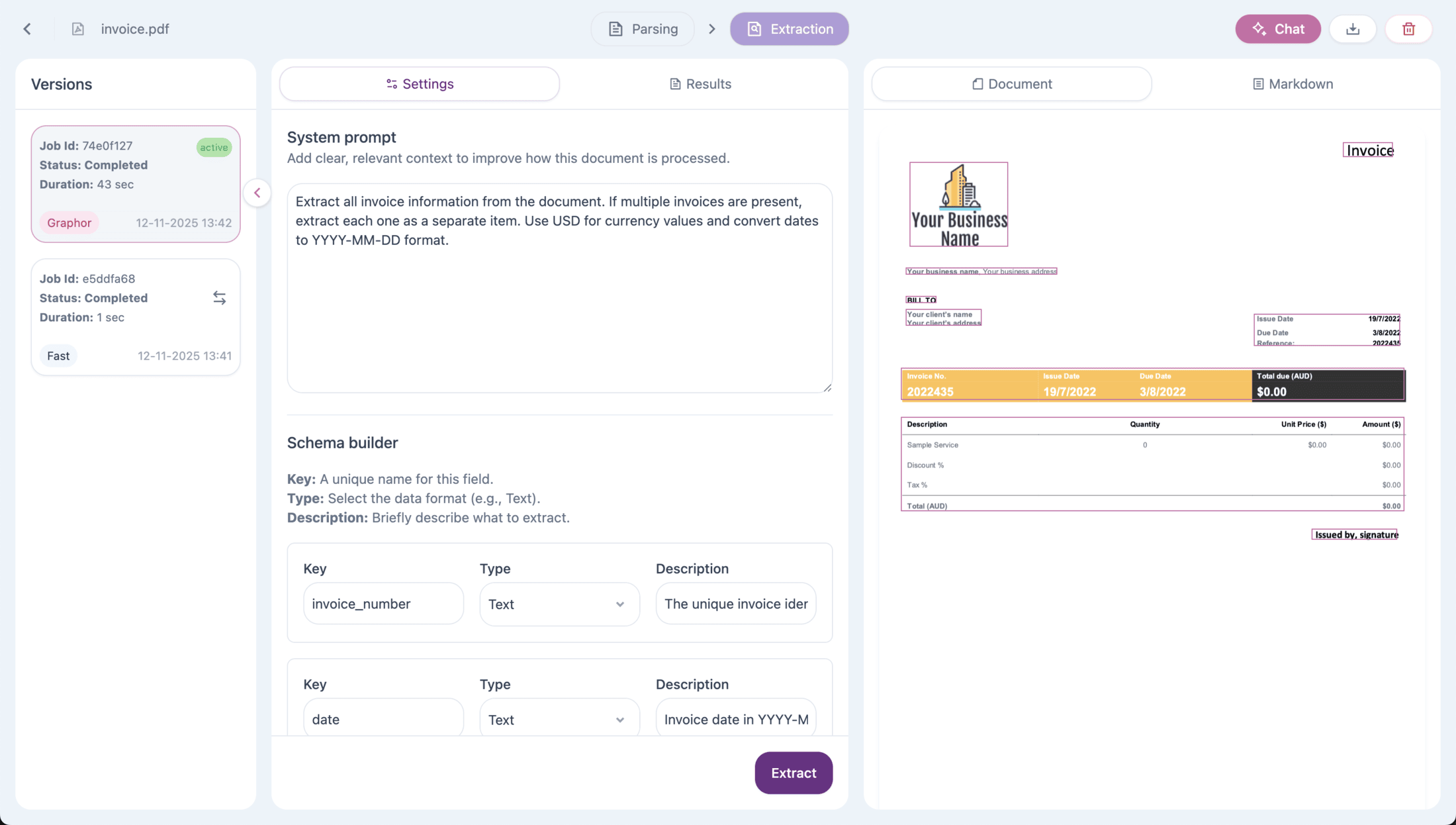
Graphor's Data Extraction feature transforms unstructured documents into structured, actionable data. Define custom output schemas, provide natural language instructions, and extract exactly the information you need — with full page-level provenance.
 ## Overview
Data Extraction uses LLM-powered processing to intelligently extract structured information from your documents. This is perfect for:
* **Invoice processing** — Extract invoice numbers, dates, amounts, and line items
* **Contract analysis** — Pull key terms, parties, dates, and obligations
* **Resume parsing** — Extract contact info, skills, experience, and education
* **Product catalogs** — Capture product names, prices, descriptions, and specifications
* **Research papers** — Extract titles, authors, abstracts, and citations
## How It Works
1. **Parse your document** — First, ingest and parse your document using any parsing method
2. **Define your schema** — Specify the fields you want to extract with types and descriptions
3. **Add instructions** — Provide optional natural language guidance for the extraction
4. **Run extraction** — The LLM processes the document and extracts matching data
5. **Review results** — View extracted data with page-level provenance
## Accessing Data Extraction
To access the Data Extraction feature:
1. Navigate to **Sources** in the left sidebar
2. Double-click on a processed document to open Source details
3. Click the **Extraction** tab at the top center of the page
You can run Data Extraction on **any parsing version** of your document. Select the desired version from the Versions panel before running the extraction.
## Defining Your Schema
The extraction schema defines what information to extract from your document. Each field in your schema has three components:
### Field Name
The key that will be used in the extracted data output. Use descriptive, snake\_case names:
* `invoice_number`
* `total_amount`
* `customer_name`
* `line_items`
### Field Type
Choose the appropriate data type for each field:
| Type | Description | Example Output |
| ----------- | ------------------------ | ------------------------------------------ |
| **Text** | String values | `"INV-2024-001"` |
| **Number** | Numeric values | `299.99` |
| **Boolean** | True/false values | `true` |
| **Date** | Date values (YYYY-MM-DD) | `"2024-01-15"` |
| **Object** | Nested structured data | `{"street": "123 Main St", "city": "NYC"}` |
| **Array** | Lists of values | `["item1", "item2"]` or `[{...}, {...}]` |
### Object Type
Use the **Object** type when you need to group related fields together. This is useful for:
* Addresses (street, city, zip, country)
* Contact information (name, email, phone)
* Specifications (weight, dimensions, material)
When you select Object type, you can define **nested fields** with their own key, type, and description.
### Array Type
Use the **Array** type for extracting lists of items. Arrays require you to specify the **Items Type**:
| Items Type | Use Case | Example |
| ----------- | ------------------------ | ------------------------------------- |
| **Text** | List of strings | Tags, categories, skills |
| **Number** | List of numbers | Page numbers, quantities |
| **Boolean** | List of booleans | Feature flags |
| **Date** | List of dates | Event dates, milestones |
| **Object** | List of structured items | Line items, work experience, products |
When using **Object** as the items type, you define nested fields that apply to each item in the array.
### Field Description
A natural language description that helps the LLM understand what to extract. Be specific and include:
* What the field represents
* Expected format (if applicable)
* Any special instructions
**Good descriptions:**
* "The unique invoice identifier, usually starting with 'INV-'"
* "Total amount due in USD, as a number without currency symbols"
* "List of all product names mentioned in the document"
**Avoid vague descriptions:**
* "The number"
* "Amount"
* "Items"
## Writing Effective Instructions
Instructions provide additional context and guidance for the extraction process. They help the LLM understand:
* **Scope** — What parts of the document to focus on
* **Format** — How to format the extracted data
* **Edge cases** — How to handle ambiguous situations
* **Multiple items** — How to handle documents with multiple extractable entities
### Example Instructions
**For invoice extraction:**
```
Extract all invoice information from the document. If multiple invoices
are present, extract each one as a separate item. Use USD for currency
values and convert dates to YYYY-MM-DD format. If a field is not found,
leave it empty rather than guessing.
```
**For contract analysis:**
```
Focus on extracting the main contractual terms. For dates, use ISO format
(YYYY-MM-DD). For monetary values, include the currency. If there are
multiple parties, list all of them in the parties field.
```
**For product catalog:**
```
Extract each product as a separate item. Prices should be numeric values
in the document's currency. Include all product variants as separate items.
```
## Running an Extraction
Once your schema and instructions are ready:
1. Review your field definitions in the schema builder
2. Add your instructions in the instructions text area
3. Click **Extract** to start the extraction process
4. Wait for the extraction to complete (processing time varies by document size)
The extraction runs asynchronously. You can navigate away and return later — the results will be saved.
## Viewing Results
After extraction completes, the **Results** view displays:
### Extracted Data Table
A structured table showing all extracted items with:
* Each row representing one extracted entity
* Columns for each field in your schema
* Values extracted from the document
### Page References
Each extracted item includes **page numbers** indicating where the information was found. This provides:
* **Traceability** — Know exactly where each piece of data came from
* **Verification** — Quickly check the source for accuracy
* **Context** — Understand the surrounding content
### Export Options
Export your extracted data for use in other systems:
* **JSON** — Structured data for programmatic use
* **CSV** — Tabular format for spreadsheets and databases
## Schema Examples
### Invoice Extraction
| Field Name | Type | Description |
| ----------------- | -------------- | --------------------------------------- |
| `invoice_number` | Text | The unique invoice identifier |
| `invoice_date` | Date | Invoice date in YYYY-MM-DD format |
| `due_date` | Date | Payment due date in YYYY-MM-DD format |
| `vendor_name` | Text | Name of the company issuing the invoice |
| `customer_name` | Text | Name of the customer being billed |
| `billing_address` | Object | Billing address details |
| ↳ `street` | Text | Street address |
| ↳ `city` | Text | City name |
| ↳ `zip_code` | Text | Postal code |
| ↳ `country` | Text | Country name |
| `subtotal` | Number | Subtotal amount before tax |
| `tax_amount` | Number | Tax amount |
| `total_amount` | Number | Total amount due |
| `line_items` | Array (Object) | List of products/services |
| ↳ `description` | Text | Item description |
| ↳ `quantity` | Number | Quantity ordered |
| ↳ `unit_price` | Number | Price per unit |
| ↳ `total` | Number | Line item total |
### Resume Parsing
| Field Name | Type | Description |
| -------------------- | -------------- | ---------------------------------- |
| `full_name` | Text | Candidate's full name |
| `email` | Text | Email address |
| `phone` | Text | Phone number |
| `location` | Text | City and country |
| `summary` | Text | Professional summary or objective |
| `skills` | Array (Text) | List of technical and soft skills |
| `work_experience` | Array (Object) | Work history |
| ↳ `company` | Text | Company name |
| ↳ `title` | Text | Job title |
| ↳ `start_date` | Date | Employment start date |
| ↳ `end_date` | Date | Employment end date (or "Present") |
| ↳ `responsibilities` | Text | Key responsibilities |
| `education` | Array (Object) | Educational background |
| ↳ `institution` | Text | School or university name |
| ↳ `degree` | Text | Degree obtained |
| ↳ `graduation_year` | Number | Year of graduation |
### Product Catalog
| Field Name | Type | Description |
| ------------------ | -------------- | ------------------------------- |
| `product_name` | Text | Name of the product |
| `sku` | Text | Product SKU or identifier |
| `price` | Number | Product price |
| `description` | Text | Product description |
| `in_stock` | Boolean | Whether the product is in stock |
| `categories` | Array (Text) | Product categories |
| `specifications` | Object | Product specifications |
| ↳ `weight` | Number | Weight in kg |
| ↳ `dimensions` | Text | Dimensions (LxWxH) |
| ↳ `material` | Text | Main material |
| `variants` | Array (Object) | Product variants |
| ↳ `color` | Text | Variant color |
| ↳ `size` | Text | Variant size |
| ↳ `price_modifier` | Number | Price adjustment |
## Best Practices
### Schema Design
1. **Start simple** — Begin with a few essential fields, then expand
2. **Be specific** — Detailed descriptions produce better results
3. **Use appropriate types** — Match the field type to expected data
4. **Consider edge cases** — Think about what happens when data is missing
5. **Use objects for structured data** — Group related fields (address, contact info) using Object type
6. **Use arrays for repeating items** — Line items, work history, and skills are perfect for Array type
7. **Keep nesting shallow** — Avoid deeply nested structures for better extraction accuracy
8. **Choose the right array items type** — Use Text arrays for simple lists (tags, skills), Object arrays for complex items (line items, experience)
### Instructions
1. **Be explicit about format** — Specify date formats, currency handling, etc.
2. **Handle multiples** — Clarify how to handle multiple items (e.g., multiple invoices)
3. **Set defaults** — Explain what to do when information isn't found
4. **Provide context** — Mention the document type if relevant
### Parsing Method Selection
The quality of extraction depends on the quality of parsing. For best results:
* **Complex layouts** — Use **Accurate** or **Agentic** parsing methods
* **Scanned documents** — Use **Balanced** or **Accurate** for better OCR
* **Simple text documents** — **Fast** method is usually sufficient
## API Integration
Data Extraction is available via the REST API for programmatic use:
### Basic Extraction
```bash theme={null}
curl -X POST "https://sources.graphorlm.com/run-extraction" \
-H "Authorization: Bearer YOUR_API_TOKEN" \
-H "Content-Type: application/json" \
-d '{
"file_name": "invoice.pdf",
"user_instruction": "Extract all invoice information. Use YYYY-MM-DD for dates.",
"output_schema_fields": [
{
"key": "invoice_number",
"type": "string",
"description": "The unique invoice identifier"
},
{
"key": "total_amount",
"type": "number",
"description": "Total amount due"
}
]
}'
```
### Extraction with Object and Array Types
```bash theme={null}
curl -X POST "https://sources.graphorlm.com/run-extraction" \
-H "Authorization: Bearer YOUR_API_TOKEN" \
-H "Content-Type: application/json" \
-d '{
"file_name": "invoice.pdf",
"user_instruction": "Extract invoice with line items and billing address.",
"output_schema_fields": [
{
"key": "invoice_number",
"type": "string",
"description": "The unique invoice identifier"
},
{
"key": "billing_address",
"type": "object",
"description": "Billing address details",
"nested_fields": [
{ "key": "street", "type": "string", "description": "Street address" },
{ "key": "city", "type": "string", "description": "City name" },
{ "key": "country", "type": "string", "description": "Country name" }
]
},
{
"key": "tags",
"type": "array",
"description": "Invoice tags",
"items_type": "string"
},
{
"key": "line_items",
"type": "array",
"description": "Invoice line items",
"items_type": "object",
"nested_fields": [
{ "key": "description", "type": "string", "description": "Item description" },
{ "key": "quantity", "type": "number", "description": "Quantity" },
{ "key": "unit_price", "type": "number", "description": "Price per unit" }
]
}
]
}'
```
The API returns the extracted data for the active document version. See the [Extraction API Reference](/api-reference/extract-api) for complete documentation.
## Troubleshooting
If fields are missing or incorrect:
* Improve field descriptions with more specific guidance
* Add detailed instructions for edge cases
* Try a different parsing method for better document understanding
* Verify the document is properly parsed before extraction
Extraction time depends on document size and complexity:
* Large documents take longer to process
* Complex schemas with many fields require more processing
* Consider extracting from specific page ranges for large documents
For scanned or image-heavy documents:
* Use **Balanced**, **Accurate**, or **Agentic** parsing methods
* Ensure the document was properly OCR'd during parsing
* Check the parsing results before running extraction
When extracting multiple items (e.g., multiple invoices in one document):
* Explicitly state in instructions how to handle multiples
* Each extracted entity appears as a separate row in results
* Page references help identify which item came from where
## Next Steps
Integrate extraction into your applications using the REST API
Ask questions about your documents using natural language
Improve parsing quality for better extraction results
## Overview
Data Extraction uses LLM-powered processing to intelligently extract structured information from your documents. This is perfect for:
* **Invoice processing** — Extract invoice numbers, dates, amounts, and line items
* **Contract analysis** — Pull key terms, parties, dates, and obligations
* **Resume parsing** — Extract contact info, skills, experience, and education
* **Product catalogs** — Capture product names, prices, descriptions, and specifications
* **Research papers** — Extract titles, authors, abstracts, and citations
## How It Works
1. **Parse your document** — First, ingest and parse your document using any parsing method
2. **Define your schema** — Specify the fields you want to extract with types and descriptions
3. **Add instructions** — Provide optional natural language guidance for the extraction
4. **Run extraction** — The LLM processes the document and extracts matching data
5. **Review results** — View extracted data with page-level provenance
## Accessing Data Extraction
To access the Data Extraction feature:
1. Navigate to **Sources** in the left sidebar
2. Double-click on a processed document to open Source details
3. Click the **Extraction** tab at the top center of the page
You can run Data Extraction on **any parsing version** of your document. Select the desired version from the Versions panel before running the extraction.
## Defining Your Schema
The extraction schema defines what information to extract from your document. Each field in your schema has three components:
### Field Name
The key that will be used in the extracted data output. Use descriptive, snake\_case names:
* `invoice_number`
* `total_amount`
* `customer_name`
* `line_items`
### Field Type
Choose the appropriate data type for each field:
| Type | Description | Example Output |
| ----------- | ------------------------ | ------------------------------------------ |
| **Text** | String values | `"INV-2024-001"` |
| **Number** | Numeric values | `299.99` |
| **Boolean** | True/false values | `true` |
| **Date** | Date values (YYYY-MM-DD) | `"2024-01-15"` |
| **Object** | Nested structured data | `{"street": "123 Main St", "city": "NYC"}` |
| **Array** | Lists of values | `["item1", "item2"]` or `[{...}, {...}]` |
### Object Type
Use the **Object** type when you need to group related fields together. This is useful for:
* Addresses (street, city, zip, country)
* Contact information (name, email, phone)
* Specifications (weight, dimensions, material)
When you select Object type, you can define **nested fields** with their own key, type, and description.
### Array Type
Use the **Array** type for extracting lists of items. Arrays require you to specify the **Items Type**:
| Items Type | Use Case | Example |
| ----------- | ------------------------ | ------------------------------------- |
| **Text** | List of strings | Tags, categories, skills |
| **Number** | List of numbers | Page numbers, quantities |
| **Boolean** | List of booleans | Feature flags |
| **Date** | List of dates | Event dates, milestones |
| **Object** | List of structured items | Line items, work experience, products |
When using **Object** as the items type, you define nested fields that apply to each item in the array.
### Field Description
A natural language description that helps the LLM understand what to extract. Be specific and include:
* What the field represents
* Expected format (if applicable)
* Any special instructions
**Good descriptions:**
* "The unique invoice identifier, usually starting with 'INV-'"
* "Total amount due in USD, as a number without currency symbols"
* "List of all product names mentioned in the document"
**Avoid vague descriptions:**
* "The number"
* "Amount"
* "Items"
## Writing Effective Instructions
Instructions provide additional context and guidance for the extraction process. They help the LLM understand:
* **Scope** — What parts of the document to focus on
* **Format** — How to format the extracted data
* **Edge cases** — How to handle ambiguous situations
* **Multiple items** — How to handle documents with multiple extractable entities
### Example Instructions
**For invoice extraction:**
```
Extract all invoice information from the document. If multiple invoices
are present, extract each one as a separate item. Use USD for currency
values and convert dates to YYYY-MM-DD format. If a field is not found,
leave it empty rather than guessing.
```
**For contract analysis:**
```
Focus on extracting the main contractual terms. For dates, use ISO format
(YYYY-MM-DD). For monetary values, include the currency. If there are
multiple parties, list all of them in the parties field.
```
**For product catalog:**
```
Extract each product as a separate item. Prices should be numeric values
in the document's currency. Include all product variants as separate items.
```
## Running an Extraction
Once your schema and instructions are ready:
1. Review your field definitions in the schema builder
2. Add your instructions in the instructions text area
3. Click **Extract** to start the extraction process
4. Wait for the extraction to complete (processing time varies by document size)
The extraction runs asynchronously. You can navigate away and return later — the results will be saved.
## Viewing Results
After extraction completes, the **Results** view displays:
### Extracted Data Table
A structured table showing all extracted items with:
* Each row representing one extracted entity
* Columns for each field in your schema
* Values extracted from the document
### Page References
Each extracted item includes **page numbers** indicating where the information was found. This provides:
* **Traceability** — Know exactly where each piece of data came from
* **Verification** — Quickly check the source for accuracy
* **Context** — Understand the surrounding content
### Export Options
Export your extracted data for use in other systems:
* **JSON** — Structured data for programmatic use
* **CSV** — Tabular format for spreadsheets and databases
## Schema Examples
### Invoice Extraction
| Field Name | Type | Description |
| ----------------- | -------------- | --------------------------------------- |
| `invoice_number` | Text | The unique invoice identifier |
| `invoice_date` | Date | Invoice date in YYYY-MM-DD format |
| `due_date` | Date | Payment due date in YYYY-MM-DD format |
| `vendor_name` | Text | Name of the company issuing the invoice |
| `customer_name` | Text | Name of the customer being billed |
| `billing_address` | Object | Billing address details |
| ↳ `street` | Text | Street address |
| ↳ `city` | Text | City name |
| ↳ `zip_code` | Text | Postal code |
| ↳ `country` | Text | Country name |
| `subtotal` | Number | Subtotal amount before tax |
| `tax_amount` | Number | Tax amount |
| `total_amount` | Number | Total amount due |
| `line_items` | Array (Object) | List of products/services |
| ↳ `description` | Text | Item description |
| ↳ `quantity` | Number | Quantity ordered |
| ↳ `unit_price` | Number | Price per unit |
| ↳ `total` | Number | Line item total |
### Resume Parsing
| Field Name | Type | Description |
| -------------------- | -------------- | ---------------------------------- |
| `full_name` | Text | Candidate's full name |
| `email` | Text | Email address |
| `phone` | Text | Phone number |
| `location` | Text | City and country |
| `summary` | Text | Professional summary or objective |
| `skills` | Array (Text) | List of technical and soft skills |
| `work_experience` | Array (Object) | Work history |
| ↳ `company` | Text | Company name |
| ↳ `title` | Text | Job title |
| ↳ `start_date` | Date | Employment start date |
| ↳ `end_date` | Date | Employment end date (or "Present") |
| ↳ `responsibilities` | Text | Key responsibilities |
| `education` | Array (Object) | Educational background |
| ↳ `institution` | Text | School or university name |
| ↳ `degree` | Text | Degree obtained |
| ↳ `graduation_year` | Number | Year of graduation |
### Product Catalog
| Field Name | Type | Description |
| ------------------ | -------------- | ------------------------------- |
| `product_name` | Text | Name of the product |
| `sku` | Text | Product SKU or identifier |
| `price` | Number | Product price |
| `description` | Text | Product description |
| `in_stock` | Boolean | Whether the product is in stock |
| `categories` | Array (Text) | Product categories |
| `specifications` | Object | Product specifications |
| ↳ `weight` | Number | Weight in kg |
| ↳ `dimensions` | Text | Dimensions (LxWxH) |
| ↳ `material` | Text | Main material |
| `variants` | Array (Object) | Product variants |
| ↳ `color` | Text | Variant color |
| ↳ `size` | Text | Variant size |
| ↳ `price_modifier` | Number | Price adjustment |
## Best Practices
### Schema Design
1. **Start simple** — Begin with a few essential fields, then expand
2. **Be specific** — Detailed descriptions produce better results
3. **Use appropriate types** — Match the field type to expected data
4. **Consider edge cases** — Think about what happens when data is missing
5. **Use objects for structured data** — Group related fields (address, contact info) using Object type
6. **Use arrays for repeating items** — Line items, work history, and skills are perfect for Array type
7. **Keep nesting shallow** — Avoid deeply nested structures for better extraction accuracy
8. **Choose the right array items type** — Use Text arrays for simple lists (tags, skills), Object arrays for complex items (line items, experience)
### Instructions
1. **Be explicit about format** — Specify date formats, currency handling, etc.
2. **Handle multiples** — Clarify how to handle multiple items (e.g., multiple invoices)
3. **Set defaults** — Explain what to do when information isn't found
4. **Provide context** — Mention the document type if relevant
### Parsing Method Selection
The quality of extraction depends on the quality of parsing. For best results:
* **Complex layouts** — Use **Accurate** or **Agentic** parsing methods
* **Scanned documents** — Use **Balanced** or **Accurate** for better OCR
* **Simple text documents** — **Fast** method is usually sufficient
## API Integration
Data Extraction is available via the REST API for programmatic use:
### Basic Extraction
```bash theme={null}
curl -X POST "https://sources.graphorlm.com/run-extraction" \
-H "Authorization: Bearer YOUR_API_TOKEN" \
-H "Content-Type: application/json" \
-d '{
"file_name": "invoice.pdf",
"user_instruction": "Extract all invoice information. Use YYYY-MM-DD for dates.",
"output_schema_fields": [
{
"key": "invoice_number",
"type": "string",
"description": "The unique invoice identifier"
},
{
"key": "total_amount",
"type": "number",
"description": "Total amount due"
}
]
}'
```
### Extraction with Object and Array Types
```bash theme={null}
curl -X POST "https://sources.graphorlm.com/run-extraction" \
-H "Authorization: Bearer YOUR_API_TOKEN" \
-H "Content-Type: application/json" \
-d '{
"file_name": "invoice.pdf",
"user_instruction": "Extract invoice with line items and billing address.",
"output_schema_fields": [
{
"key": "invoice_number",
"type": "string",
"description": "The unique invoice identifier"
},
{
"key": "billing_address",
"type": "object",
"description": "Billing address details",
"nested_fields": [
{ "key": "street", "type": "string", "description": "Street address" },
{ "key": "city", "type": "string", "description": "City name" },
{ "key": "country", "type": "string", "description": "Country name" }
]
},
{
"key": "tags",
"type": "array",
"description": "Invoice tags",
"items_type": "string"
},
{
"key": "line_items",
"type": "array",
"description": "Invoice line items",
"items_type": "object",
"nested_fields": [
{ "key": "description", "type": "string", "description": "Item description" },
{ "key": "quantity", "type": "number", "description": "Quantity" },
{ "key": "unit_price", "type": "number", "description": "Price per unit" }
]
}
]
}'
```
The API returns the extracted data for the active document version. See the [Extraction API Reference](/api-reference/extract-api) for complete documentation.
## Troubleshooting
If fields are missing or incorrect:
* Improve field descriptions with more specific guidance
* Add detailed instructions for edge cases
* Try a different parsing method for better document understanding
* Verify the document is properly parsed before extraction
Extraction time depends on document size and complexity:
* Large documents take longer to process
* Complex schemas with many fields require more processing
* Consider extracting from specific page ranges for large documents
For scanned or image-heavy documents:
* Use **Balanced**, **Accurate**, or **Agentic** parsing methods
* Ensure the document was properly OCR'd during parsing
* Check the parsing results before running extraction
When extracting multiple items (e.g., multiple invoices in one document):
* Explicitly state in instructions how to handle multiples
* Each extracted entity appears as a separate row in results
* Page references help identify which item came from where
## Next Steps
Integrate extraction into your applications using the REST API
Ask questions about your documents using natural language
Improve parsing quality for better extraction results