> ## Documentation Index
> Fetch the complete documentation index at: https://docs.graphorlm.com/llms.txt
> Use this file to discover all available pages before exploring further.
# Ingestion
> Import and process documents from multiple sources with state-of-the-art parsing, OCR, and intelligent content classification
Graphor transforms unstructured documents into structured, queryable data using state-of-the-art parsing technology. Ingest files from local storage, web pages, GitHub repositories, and YouTube videos — then extract insights through Document Chat or Data Extraction.
 ## Overview
Graphor's data ingestion process involves:
1. **Document upload** - Import files from various sources
2. **Text extraction** - Convert documents to machine-readable text
3. **Structure recognition** - Identify document elements and hierarchy
4. **Metadata extraction** - Capture important document properties
5. **Content classification** - Categorize document sections
## Supported Document Types
Graphor supports a wide range of document formats:
| Document Type | Extensions | Features |
| ----------------- | ---------------------------------------- | ---------------------------------------------- |
| Text Documents | PDF, TXT, TEXT, MD, DOC, DOCX, HTML, HTM | Full text extraction, structure preservation |
| Images | PNG, JPG, JPEG, TIFF, BMP, HEIC | OCR for text extraction, image analysis |
| Presentations | PPT, PPTX | Slide extraction, image processing |
| Spreadsheets | XLS, XLSX, CSV, TSV | Table parsing, data extraction |
| Audio Files | MP3, WAV, M4A, OGG, FLAC | Speech-to-text transcription, audio analysis |
| Video Files | MP4, MOV, AVI, MKV, WEBM | Video transcription, visual content extraction |
| Web Content | URL | Web scraping, content extraction |
| Code Repositories | GitHub URL | Repository content extraction, code analysis |
| Video Content | YouTube URL | Video transcription, content extraction |
## Importing Documents
There are several ways to import documents into Graphor:
### Method 1: Local Files Upload
You have two options for uploading local files:
**Option 1: Drag and drop directly**
* Simply drag and drop your files anywhere on the Sources page
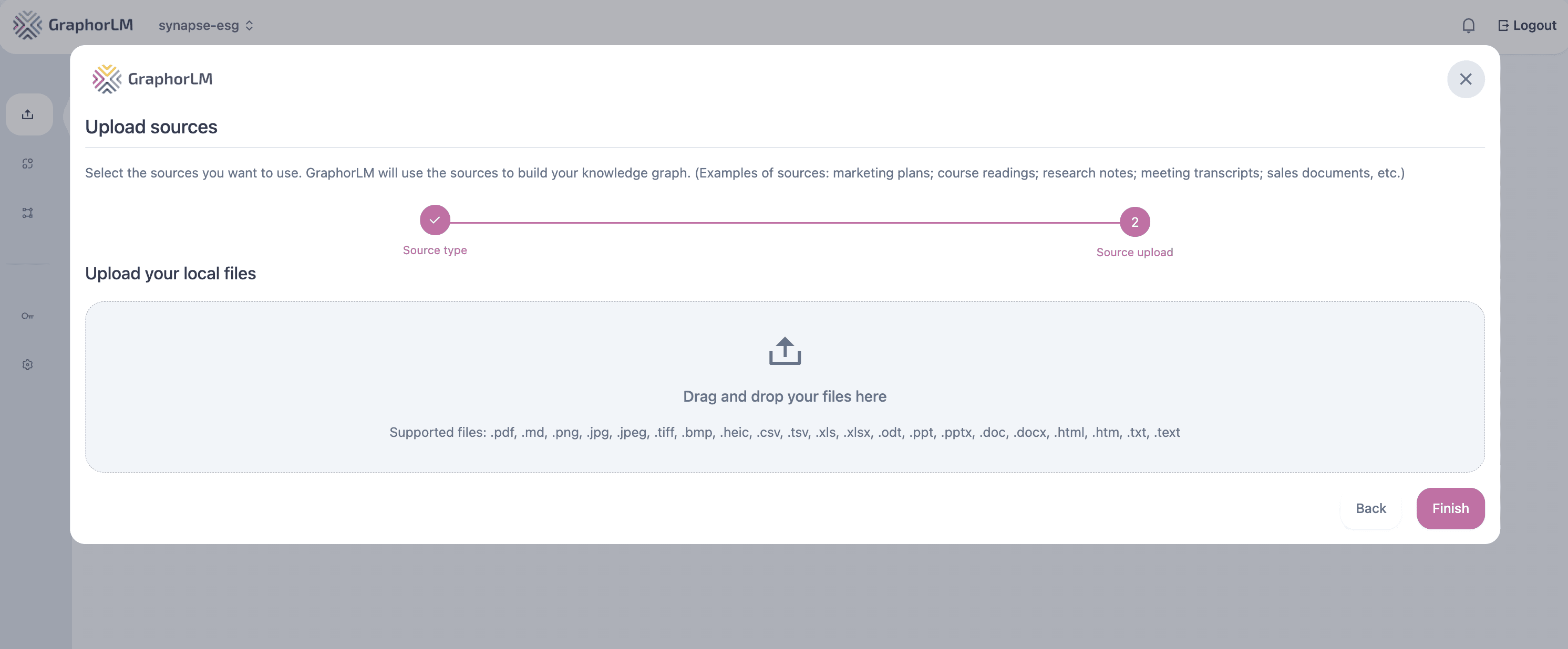
**Option 2: Use the upload interface**
1. Navigate to **Sources** in the left sidebar
2. Click **Add**
3. Select **Local files**
4. Select your files or drag and drop them into the upload area
5. Click **Finish** to begin processing
## Overview
Graphor's data ingestion process involves:
1. **Document upload** - Import files from various sources
2. **Text extraction** - Convert documents to machine-readable text
3. **Structure recognition** - Identify document elements and hierarchy
4. **Metadata extraction** - Capture important document properties
5. **Content classification** - Categorize document sections
## Supported Document Types
Graphor supports a wide range of document formats:
| Document Type | Extensions | Features |
| ----------------- | ---------------------------------------- | ---------------------------------------------- |
| Text Documents | PDF, TXT, TEXT, MD, DOC, DOCX, HTML, HTM | Full text extraction, structure preservation |
| Images | PNG, JPG, JPEG, TIFF, BMP, HEIC | OCR for text extraction, image analysis |
| Presentations | PPT, PPTX | Slide extraction, image processing |
| Spreadsheets | XLS, XLSX, CSV, TSV | Table parsing, data extraction |
| Audio Files | MP3, WAV, M4A, OGG, FLAC | Speech-to-text transcription, audio analysis |
| Video Files | MP4, MOV, AVI, MKV, WEBM | Video transcription, visual content extraction |
| Web Content | URL | Web scraping, content extraction |
| Code Repositories | GitHub URL | Repository content extraction, code analysis |
| Video Content | YouTube URL | Video transcription, content extraction |
## Importing Documents
There are several ways to import documents into Graphor:
### Method 1: Local Files Upload
You have two options for uploading local files:
**Option 1: Drag and drop directly**
* Simply drag and drop your files anywhere on the Sources page
**Option 2: Use the upload interface**
1. Navigate to **Sources** in the left sidebar
2. Click **Add**
3. Select **Local files**
4. Select your files or drag and drop them into the upload area
5. Click **Finish** to begin processing
 **Note**: Large files (>100MB) are automatically uploaded in smaller chunks for improved reliability and progress tracking.
### Method 2: URL Import
To import content directly from a web address:
1. Navigate to **Sources** in the left sidebar
2. Click **Add**
3. Select **Web page**
4. Enter the web address of the content you want to import
5. Optionally enable **Crawl URLs** to extract links and import related pages
6. Click **Finish** to begin processing
Graphor will crawl the specified URL, extract the content, and process it for ingestion.
### Method 3: GitHub Repository Import
To import content from a GitHub repository:
1. Navigate to **Sources** in the left sidebar
2. Click **Add**
3. Select **GitHub**
4. Enter the GitHub repository URL (e.g., `https://github.com/username/repository`)
5. Click **Finish** to begin processing
Graphor will clone the repository, extract code files, documentation, and README files for processing. This is particularly useful for:
* Code documentation and analysis
* Repository knowledge bases
* Technical documentation extraction
* Open source project analysis
### Method 4: YouTube Video Import
To import content from YouTube videos:
1. Navigate to **Sources** in the left sidebar
2. Click **Add**
3. Select **YouTube**
4. Enter the YouTube video URL
5. Click **Finish** to begin processing
Graphor will extract audio from the video, perform speech-to-text transcription, and process the resulting content. This enables:
* Lecture and educational content extraction
* Meeting and conference transcription
* Video-based knowledge extraction
* Audio content analysis
## Advanced OCR Processing
Graphor utilizes state-of-the-art OCR (Optical Character Recognition) to extract text from images and scanned documents.
### OCR Features
* **Multi-language support** - Recognize text in various languages
* **Layout preservation** - Maintain document structure and formatting
* **Table detection** - Extract structured data from tables
* **Image text extraction** - Identify and capture text embedded in images
* **Handwriting recognition** - Process handwritten notes (with varying accuracy)
## Document Parsing Methods
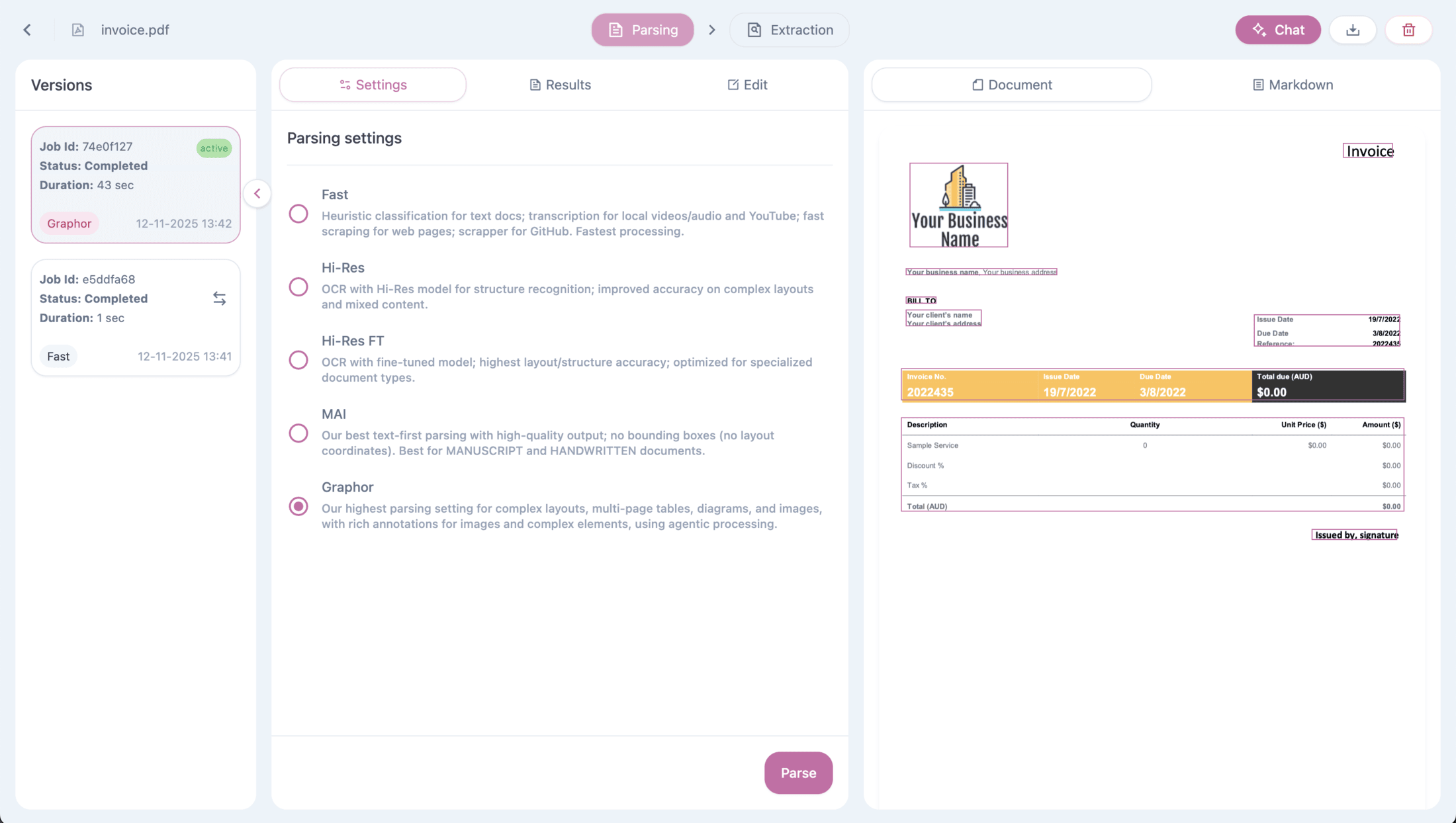
When you upload a source, Graphor automatically applies the **Fast** parsing method. For more complex documents, you can manually apply advanced parsing methods.
Graphor offers five parsing methods to optimize document processing based on your needs:
### Auto
* **Per-page routing** — classifies each page and runs the cheapest parser that fits
* Body pages run on Fast, table pages on Accurate, scanned/image pages on Agentic — automatically
* Billed per page on the **effective** method used, not a flat per-document price
* Best balance of cost and quality on **mixed PDFs** (covers + body + tables + scans in one document)
* **PDF-only** today. Non-PDF sources fall back to Fast.
### Fast
* Heuristic classification for text documents
* Transcription for local videos/audio and YouTube
* Fast scraping for web pages
* Scraper for GitHub repositories
* **Fastest processing option** (applied by default)
### Balanced
* OCR with Hi-Res model for structure recognition
* Improved accuracy on complex layouts and mixed content
* Better recognition of document structure and components
### Accurate
* OCR with fine-tuned model
* Highest layout/structure accuracy
* Optimized for specialized document types
### Agentic
* Our highest parsing setting for complex layouts
* Multi-page tables, diagrams, and images support
* Rich annotations for images and complex elements
* Uses agentic processing for enhanced understanding
### Selecting a Parsing Method
To apply a different parsing method:
1. Click on a processed file from the Sources list to access Source details
2. Navigate to the **Settings** tab
3. Select your preferred parsing method
4. Click **Parse** to apply the new method
5. Wait for processing to complete
**Note**: Large files (>100MB) are automatically uploaded in smaller chunks for improved reliability and progress tracking.
### Method 2: URL Import
To import content directly from a web address:
1. Navigate to **Sources** in the left sidebar
2. Click **Add**
3. Select **Web page**
4. Enter the web address of the content you want to import
5. Optionally enable **Crawl URLs** to extract links and import related pages
6. Click **Finish** to begin processing
Graphor will crawl the specified URL, extract the content, and process it for ingestion.
### Method 3: GitHub Repository Import
To import content from a GitHub repository:
1. Navigate to **Sources** in the left sidebar
2. Click **Add**
3. Select **GitHub**
4. Enter the GitHub repository URL (e.g., `https://github.com/username/repository`)
5. Click **Finish** to begin processing
Graphor will clone the repository, extract code files, documentation, and README files for processing. This is particularly useful for:
* Code documentation and analysis
* Repository knowledge bases
* Technical documentation extraction
* Open source project analysis
### Method 4: YouTube Video Import
To import content from YouTube videos:
1. Navigate to **Sources** in the left sidebar
2. Click **Add**
3. Select **YouTube**
4. Enter the YouTube video URL
5. Click **Finish** to begin processing
Graphor will extract audio from the video, perform speech-to-text transcription, and process the resulting content. This enables:
* Lecture and educational content extraction
* Meeting and conference transcription
* Video-based knowledge extraction
* Audio content analysis
## Advanced OCR Processing
Graphor utilizes state-of-the-art OCR (Optical Character Recognition) to extract text from images and scanned documents.
### OCR Features
* **Multi-language support** - Recognize text in various languages
* **Layout preservation** - Maintain document structure and formatting
* **Table detection** - Extract structured data from tables
* **Image text extraction** - Identify and capture text embedded in images
* **Handwriting recognition** - Process handwritten notes (with varying accuracy)
## Document Parsing Methods
When you upload a source, Graphor automatically applies the **Fast** parsing method. For more complex documents, you can manually apply advanced parsing methods.
Graphor offers five parsing methods to optimize document processing based on your needs:
### Auto
* **Per-page routing** — classifies each page and runs the cheapest parser that fits
* Body pages run on Fast, table pages on Accurate, scanned/image pages on Agentic — automatically
* Billed per page on the **effective** method used, not a flat per-document price
* Best balance of cost and quality on **mixed PDFs** (covers + body + tables + scans in one document)
* **PDF-only** today. Non-PDF sources fall back to Fast.
### Fast
* Heuristic classification for text documents
* Transcription for local videos/audio and YouTube
* Fast scraping for web pages
* Scraper for GitHub repositories
* **Fastest processing option** (applied by default)
### Balanced
* OCR with Hi-Res model for structure recognition
* Improved accuracy on complex layouts and mixed content
* Better recognition of document structure and components
### Accurate
* OCR with fine-tuned model
* Highest layout/structure accuracy
* Optimized for specialized document types
### Agentic
* Our highest parsing setting for complex layouts
* Multi-page tables, diagrams, and images support
* Rich annotations for images and complex elements
* Uses agentic processing for enhanced understanding
### Selecting a Parsing Method
To apply a different parsing method:
1. Click on a processed file from the Sources list to access Source details
2. Navigate to the **Settings** tab
3. Select your preferred parsing method
4. Click **Parse** to apply the new method
5. Wait for processing to complete
 ### Processing Time Estimates
Processing time varies based on the parsing method and document complexity:
| Method | Typical Processing Time | Best For |
| ------------ | ----------------------- | ---------------------------------------------- |
| **Auto** | Mixed (per page) | Mixed PDFs with body + tables + scans |
| **Fast** | Seconds | Simple text documents, quick iteration |
| **Balanced** | 10-30 seconds per page | Complex layouts requiring OCR |
| **Accurate** | 15-45 seconds per page | Specialized documents needing highest accuracy |
| **Agentic** | 30-60+ seconds per page | Complex multi-page tables, diagrams |
**Note**: Actual processing times depend on document size, complexity, and current system load.
### Viewing Parsing Results
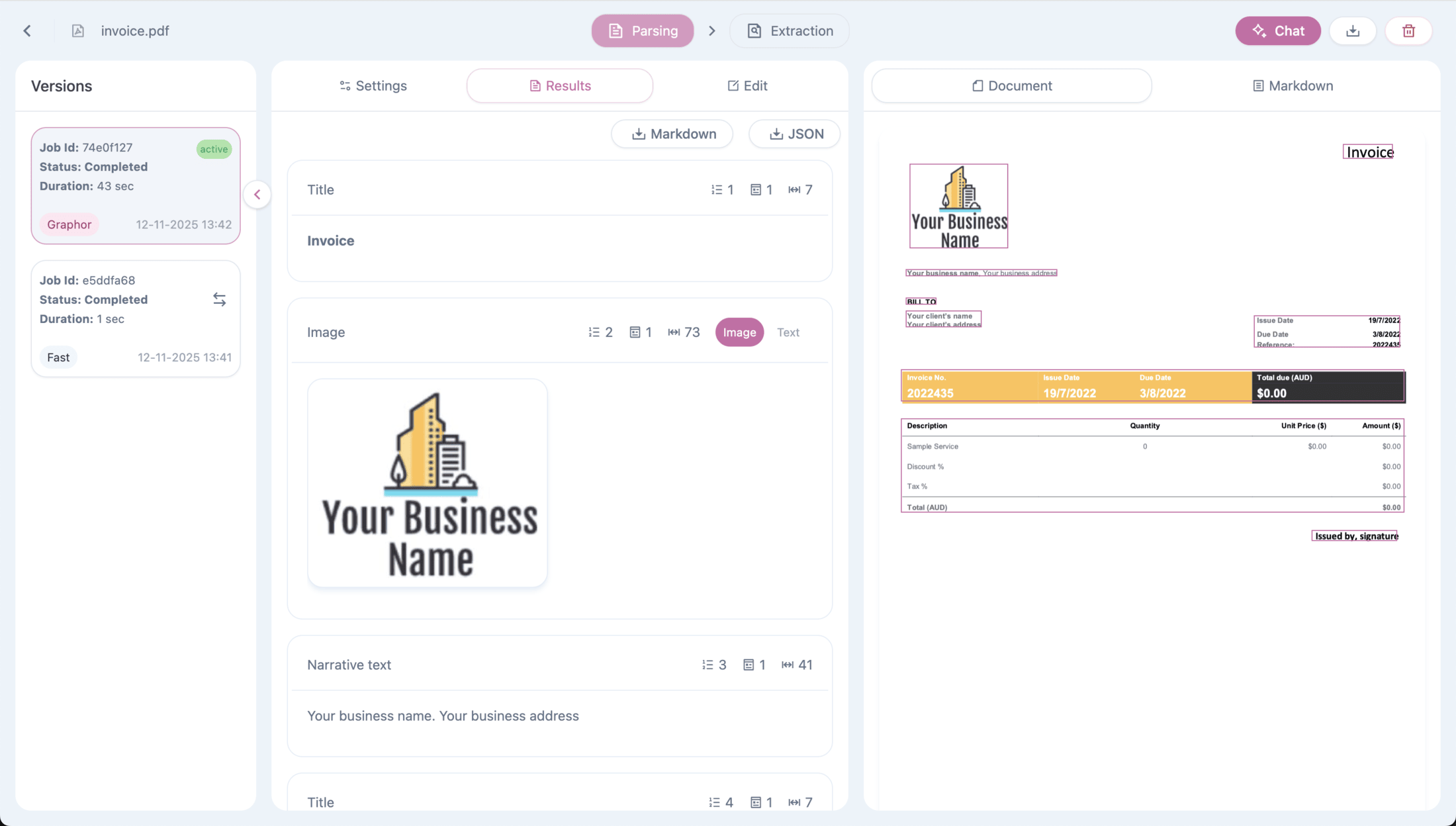
After parsing completes, you can review the results in the **Results** tab:
* **Document view** — Visual representation of the parsed content with element highlighting
* **Markdown view** — Raw markdown output ready for downstream processing
* **Page navigation** — Browse through multi-page documents page by page
* **Element types** — See how each section was classified (Title, Narrative text, Table, etc.)
Toggle between **Document** and **Markdown** views using the tabs at the top of the preview panel.
### Editing Parsed Content
The **Edit** tab allows you to manually refine the parsed output:
* **Correct OCR errors** — Fix text recognition mistakes
* **Adjust element types** — Change how sections are classified
* **Modify structure** — Reorganize content hierarchy
* **Add annotations** — Include custom notes or metadata
Manual edits are preserved in the current version and won't be overwritten unless you reparse the document.
### Version History
Every parsing result is saved and available in the **Versions** panel on the left side of the Source details page.
Each version displays:
* **Job ID** — Unique identifier for the parsing job
* **Status** — Completed, Failed, or Processing
* **Duration** — How long the parsing took
* **Parsing method** — Which method was used (Fast, Balanced, etc.)
* **Timestamp** — When the parsing was executed
Version management features:
* **Compare different parsing methods** — Try multiple methods and compare results side by side
* **Switch active version** — Click on any version to set it as active
* **Automatic activation** — When a new parsing completes successfully, it's automatically set as the active version
* **Preserve history** — Previous versions are never deleted, allowing you to revert at any time
The active version (marked with a green "active" badge) is the one used for Document Chat and Data Extraction.
## Content Classification
Graphor can automatically classify document sections to improve retrieval relevance:
### Document Element Types
The platform classifies content into the following specific element types:
* **Title** - Document and section titles
* **Narrative text** - Main body paragraphs and content
* **List item** - Items in bullet points or numbered lists
* **Table** - Complete data tables
* **Table row** - Individual rows within tables
* **Image** - Picture or graphic elements
* **Footer** - Footer content at bottom of pages
* **Formula** - Mathematical formulas and equations
* **Composite element** - Elements containing multiple types
* **Figure caption** - Text describing images or figures
* **Page break** - Indicators of page separation
* **Address** - Physical address information
* **Email address** - Email contact information
* **Page number** - Page numbering elements
* **Code snippet** - Programming code segments
* **Header** - Header content at top of pages
* **Form keys values** - Key-value pairs in forms
* **Link** - Hyperlinks and references
* **Uncategorized text** - Text that doesn't fit other categories
These classifications help Graphor understand document structure, enabling more intelligent chunking, accurate data extraction, and contextual document chat responses. By recognizing different element types, the system can make better decisions about how to segment documents, extract structured information, and provide more relevant answers to your questions.
## Metadata Extraction
Graphor automatically extracts and processes document metadata:
* File name and type
* Creation and modification dates
* Document size and page count
* Author information (when available)
* Title and description
## Monitoring Processing Status
Monitor the progress of document processing in the Sources dashboard:
* **Waiting** - Documents queued for processing
* **Uploading** - Documents currently being uploaded
* **Processing** - Documents currently being parsed
* **Processed** - Documents successfully parsed and ready for use
* **Not parsed** - Documents uploaded but not yet parsed (e.g., URLs, YouTube)
* **Failed** - Documents that encountered errors during processing
For failed documents, you can view error details and retry processing with adjusted settings.
## Batch Operations
Graphor supports batch operations to help you manage multiple sources efficiently:
### Uploading Multiple Files
* **Drag and drop multiple files** at once onto the Sources page
* **Select multiple files** in the upload interface
* Files are processed in parallel for faster ingestion
### Deleting Multiple Sources
To delete multiple sources at once:
1. Single-click on sources to select them (double-click opens Source details)
2. Click the **Delete** button in the toolbar
3. Confirm the deletion
**Note**: Deleting sources permanently removes the document and its derived data (parsed elements, embeddings, and metadata).
## Programmatic Integration
All data ingestion operations can be automated using Graphor's REST API. The project context is already included in your API token.
**Base URL:** `https://sources.graphorlm.com`
### Upload a File
```bash theme={null}
curl -X POST "https://sources.graphorlm.com/upload" \
-H "Authorization: Bearer YOUR_API_TOKEN" \
-F "file=@document.pdf"
```
### Upload from URL
```bash theme={null}
curl -X POST "https://sources.graphorlm.com/upload-url-source" \
-H "Authorization: Bearer YOUR_API_TOKEN" \
-H "Content-Type: application/json" \
-d '{"url": "https://example.com/page", "crawlUrls": false}'
```
### Upload from GitHub
```bash theme={null}
curl -X POST "https://sources.graphorlm.com/upload-github-source" \
-H "Authorization: Bearer YOUR_API_TOKEN" \
-H "Content-Type: application/json" \
-d '{"url": "https://github.com/owner/repo"}'
```
### Process with Specific Parsing Method
```bash theme={null}
curl -X POST "https://sources.graphorlm.com/process" \
-H "Authorization: Bearer YOUR_API_TOKEN" \
-H "Content-Type: application/json" \
-d '{"file_name": "document.pdf", "partition_method": "hi_res"}'
```
### List All Sources
```bash theme={null}
curl -X GET "https://sources.graphorlm.com" \
-H "Authorization: Bearer YOUR_API_TOKEN"
```
### Delete a Source
```bash theme={null}
curl -X DELETE "https://sources.graphorlm.com/delete" \
-H "Authorization: Bearer YOUR_API_TOKEN" \
-H "Content-Type: application/json" \
-d '{"file_name": "document.pdf"}'
```
For detailed API documentation, see the [API Reference](/api-reference/sources/upload).
## Best Practices
To optimize data ingestion results:
### General Practices
1. **Use consistent formats** - When possible, standardize document formats
2. **Check processing results** - Review extracted text for accuracy
3. **Customize for complex documents** - Use advanced parsing for specialized content
4. **Monitor processing status** - Check for failed documents and resolve issues
### Source-Specific Practices
**For Local Files:**
* Optimize file sizes before upload (large files are processed in chunks automatically)
* Use descriptive filenames for better organization
* Group related documents for batch processing
**For Web URLs:**
* Enable "Crawl URLs" for comprehensive site extraction
* Verify URLs are publicly accessible
* Consider the depth of crawling for large websites
**For GitHub Repositories:**
* Use specific branch or tag URLs when needed
* Be aware that large repositories may take longer to process
**For YouTube Videos:**
* Ensure videos have clear audio for better transcription
* Consider video length - longer videos require more processing time
* Check that videos are publicly accessible
**For Audio/Video Files:**
* Use high-quality audio for better transcription accuracy
* Consider file size limits and processing time
* Ensure proper audio codecs for compatibility
### Processing Method Selection
* **Auto**: Use for mixed PDFs (body + tables + scans in one document) — routes each page to the cheapest parser that fits. PDF-only.
* **Fast**: Use for simple text documents and fastest processing (applied by default)
* **Balanced**: Ideal for complex layouts and mixed content types with OCR
* **Accurate**: Best for specialized document types requiring highest layout accuracy
* **Agentic**: Use for complex layouts, multi-page tables, diagrams, and images requiring rich annotations
## Troubleshooting
Common issues and solutions:
For low-quality scanned documents, try:
* Using Balanced, Accurate, or Agentic methods instead of Fast
* Breaking large documents into smaller files
* Improving document quality before upload if possible
If tables aren't being properly recognized:
* Use Balanced, Accurate, or Agentic method for better table detection
* Agentic is best for multi-page tables
* Convert complex tables to simpler formats before upload
For documents with multiple languages:
* Process different language sections as separate documents
* Use Balanced, Accurate, or Agentic method which has better multi-language support
If processing is taking too long:
* Use Fast method for simple documents
* Avoid Accurate or Agentic unless you need their advanced features
If you're having trouble importing from GitHub:
* Ensure the repository is public or you have proper access permissions
* Check that the repository URL is correctly formatted
* Large repositories may take longer to process - be patient during import
For YouTube video import problems:
* Verify the video URL is accessible and not private
* Note that very long videos may take significant processing time
* Audio quality affects transcription accuracy
For audio and video file problems:
* Ensure audio quality is clear for better transcription results
* Large video files may be automatically processed in chunks
* Check that audio language is supported for transcription
## Next Steps
After successfully ingesting your documents, explore these next steps:
Extract structured data from your documents using custom schemas and natural language instructions
Ask questions and get answers grounded in your document content
Set up authentication for programmatic access to your documents and data
Integrate document upload into your applications using the REST API
### Processing Time Estimates
Processing time varies based on the parsing method and document complexity:
| Method | Typical Processing Time | Best For |
| ------------ | ----------------------- | ---------------------------------------------- |
| **Auto** | Mixed (per page) | Mixed PDFs with body + tables + scans |
| **Fast** | Seconds | Simple text documents, quick iteration |
| **Balanced** | 10-30 seconds per page | Complex layouts requiring OCR |
| **Accurate** | 15-45 seconds per page | Specialized documents needing highest accuracy |
| **Agentic** | 30-60+ seconds per page | Complex multi-page tables, diagrams |
**Note**: Actual processing times depend on document size, complexity, and current system load.
### Viewing Parsing Results
After parsing completes, you can review the results in the **Results** tab:
* **Document view** — Visual representation of the parsed content with element highlighting
* **Markdown view** — Raw markdown output ready for downstream processing
* **Page navigation** — Browse through multi-page documents page by page
* **Element types** — See how each section was classified (Title, Narrative text, Table, etc.)
Toggle between **Document** and **Markdown** views using the tabs at the top of the preview panel.
### Editing Parsed Content
The **Edit** tab allows you to manually refine the parsed output:
* **Correct OCR errors** — Fix text recognition mistakes
* **Adjust element types** — Change how sections are classified
* **Modify structure** — Reorganize content hierarchy
* **Add annotations** — Include custom notes or metadata
Manual edits are preserved in the current version and won't be overwritten unless you reparse the document.
### Version History
Every parsing result is saved and available in the **Versions** panel on the left side of the Source details page.
Each version displays:
* **Job ID** — Unique identifier for the parsing job
* **Status** — Completed, Failed, or Processing
* **Duration** — How long the parsing took
* **Parsing method** — Which method was used (Fast, Balanced, etc.)
* **Timestamp** — When the parsing was executed
Version management features:
* **Compare different parsing methods** — Try multiple methods and compare results side by side
* **Switch active version** — Click on any version to set it as active
* **Automatic activation** — When a new parsing completes successfully, it's automatically set as the active version
* **Preserve history** — Previous versions are never deleted, allowing you to revert at any time
The active version (marked with a green "active" badge) is the one used for Document Chat and Data Extraction.
## Content Classification
Graphor can automatically classify document sections to improve retrieval relevance:
### Document Element Types
The platform classifies content into the following specific element types:
* **Title** - Document and section titles
* **Narrative text** - Main body paragraphs and content
* **List item** - Items in bullet points or numbered lists
* **Table** - Complete data tables
* **Table row** - Individual rows within tables
* **Image** - Picture or graphic elements
* **Footer** - Footer content at bottom of pages
* **Formula** - Mathematical formulas and equations
* **Composite element** - Elements containing multiple types
* **Figure caption** - Text describing images or figures
* **Page break** - Indicators of page separation
* **Address** - Physical address information
* **Email address** - Email contact information
* **Page number** - Page numbering elements
* **Code snippet** - Programming code segments
* **Header** - Header content at top of pages
* **Form keys values** - Key-value pairs in forms
* **Link** - Hyperlinks and references
* **Uncategorized text** - Text that doesn't fit other categories
These classifications help Graphor understand document structure, enabling more intelligent chunking, accurate data extraction, and contextual document chat responses. By recognizing different element types, the system can make better decisions about how to segment documents, extract structured information, and provide more relevant answers to your questions.
## Metadata Extraction
Graphor automatically extracts and processes document metadata:
* File name and type
* Creation and modification dates
* Document size and page count
* Author information (when available)
* Title and description
## Monitoring Processing Status
Monitor the progress of document processing in the Sources dashboard:
* **Waiting** - Documents queued for processing
* **Uploading** - Documents currently being uploaded
* **Processing** - Documents currently being parsed
* **Processed** - Documents successfully parsed and ready for use
* **Not parsed** - Documents uploaded but not yet parsed (e.g., URLs, YouTube)
* **Failed** - Documents that encountered errors during processing
For failed documents, you can view error details and retry processing with adjusted settings.
## Batch Operations
Graphor supports batch operations to help you manage multiple sources efficiently:
### Uploading Multiple Files
* **Drag and drop multiple files** at once onto the Sources page
* **Select multiple files** in the upload interface
* Files are processed in parallel for faster ingestion
### Deleting Multiple Sources
To delete multiple sources at once:
1. Single-click on sources to select them (double-click opens Source details)
2. Click the **Delete** button in the toolbar
3. Confirm the deletion
**Note**: Deleting sources permanently removes the document and its derived data (parsed elements, embeddings, and metadata).
## Programmatic Integration
All data ingestion operations can be automated using Graphor's REST API. The project context is already included in your API token.
**Base URL:** `https://sources.graphorlm.com`
### Upload a File
```bash theme={null}
curl -X POST "https://sources.graphorlm.com/upload" \
-H "Authorization: Bearer YOUR_API_TOKEN" \
-F "file=@document.pdf"
```
### Upload from URL
```bash theme={null}
curl -X POST "https://sources.graphorlm.com/upload-url-source" \
-H "Authorization: Bearer YOUR_API_TOKEN" \
-H "Content-Type: application/json" \
-d '{"url": "https://example.com/page", "crawlUrls": false}'
```
### Upload from GitHub
```bash theme={null}
curl -X POST "https://sources.graphorlm.com/upload-github-source" \
-H "Authorization: Bearer YOUR_API_TOKEN" \
-H "Content-Type: application/json" \
-d '{"url": "https://github.com/owner/repo"}'
```
### Process with Specific Parsing Method
```bash theme={null}
curl -X POST "https://sources.graphorlm.com/process" \
-H "Authorization: Bearer YOUR_API_TOKEN" \
-H "Content-Type: application/json" \
-d '{"file_name": "document.pdf", "partition_method": "hi_res"}'
```
### List All Sources
```bash theme={null}
curl -X GET "https://sources.graphorlm.com" \
-H "Authorization: Bearer YOUR_API_TOKEN"
```
### Delete a Source
```bash theme={null}
curl -X DELETE "https://sources.graphorlm.com/delete" \
-H "Authorization: Bearer YOUR_API_TOKEN" \
-H "Content-Type: application/json" \
-d '{"file_name": "document.pdf"}'
```
For detailed API documentation, see the [API Reference](/api-reference/sources/upload).
## Best Practices
To optimize data ingestion results:
### General Practices
1. **Use consistent formats** - When possible, standardize document formats
2. **Check processing results** - Review extracted text for accuracy
3. **Customize for complex documents** - Use advanced parsing for specialized content
4. **Monitor processing status** - Check for failed documents and resolve issues
### Source-Specific Practices
**For Local Files:**
* Optimize file sizes before upload (large files are processed in chunks automatically)
* Use descriptive filenames for better organization
* Group related documents for batch processing
**For Web URLs:**
* Enable "Crawl URLs" for comprehensive site extraction
* Verify URLs are publicly accessible
* Consider the depth of crawling for large websites
**For GitHub Repositories:**
* Use specific branch or tag URLs when needed
* Be aware that large repositories may take longer to process
**For YouTube Videos:**
* Ensure videos have clear audio for better transcription
* Consider video length - longer videos require more processing time
* Check that videos are publicly accessible
**For Audio/Video Files:**
* Use high-quality audio for better transcription accuracy
* Consider file size limits and processing time
* Ensure proper audio codecs for compatibility
### Processing Method Selection
* **Auto**: Use for mixed PDFs (body + tables + scans in one document) — routes each page to the cheapest parser that fits. PDF-only.
* **Fast**: Use for simple text documents and fastest processing (applied by default)
* **Balanced**: Ideal for complex layouts and mixed content types with OCR
* **Accurate**: Best for specialized document types requiring highest layout accuracy
* **Agentic**: Use for complex layouts, multi-page tables, diagrams, and images requiring rich annotations
## Troubleshooting
Common issues and solutions:
For low-quality scanned documents, try:
* Using Balanced, Accurate, or Agentic methods instead of Fast
* Breaking large documents into smaller files
* Improving document quality before upload if possible
If tables aren't being properly recognized:
* Use Balanced, Accurate, or Agentic method for better table detection
* Agentic is best for multi-page tables
* Convert complex tables to simpler formats before upload
For documents with multiple languages:
* Process different language sections as separate documents
* Use Balanced, Accurate, or Agentic method which has better multi-language support
If processing is taking too long:
* Use Fast method for simple documents
* Avoid Accurate or Agentic unless you need their advanced features
If you're having trouble importing from GitHub:
* Ensure the repository is public or you have proper access permissions
* Check that the repository URL is correctly formatted
* Large repositories may take longer to process - be patient during import
For YouTube video import problems:
* Verify the video URL is accessible and not private
* Note that very long videos may take significant processing time
* Audio quality affects transcription accuracy
For audio and video file problems:
* Ensure audio quality is clear for better transcription results
* Large video files may be automatically processed in chunks
* Check that audio language is supported for transcription
## Next Steps
After successfully ingesting your documents, explore these next steps:
Extract structured data from your documents using custom schemas and natural language instructions
Ask questions and get answers grounded in your document content
Set up authentication for programmatic access to your documents and data
Integrate document upload into your applications using the REST API