> ## Documentation Index
> Fetch the complete documentation index at: https://docs.graphorlm.com/llms.txt
> Use this file to discover all available pages before exploring further.
# LLM
> Learn how to optionally enhance your RAG pipeline with language model integration
This guide explains how to optionally integrate and configure Language Models (LLMs) in Graphor to generate natural language responses based on retrieved information.
 ## Overview
While Graphor focuses primarily on high-quality information retrieval, you can optionally add an LLM component to your pipeline to transform retrieved information into natural language responses. It's important to note that **using an LLM node is completely optional** - many users can achieve their goals using just the Retrieval component as the final output.
### When to Use Retrieval Only
The Retrieval component can serve as the final stage of your RAG pipeline when:
* You need direct access to the most relevant document chunks
* You're integrating with your own custom LLM solution
* You want to implement your own response generation logic
* You're primarily focused on document search functionality
* You want to optimize resource usage for LLM API calls
### When to Add an LLM Component
Consider adding the LLM component when:
* You need natural language responses generated from retrieved content
* You want a complete end-to-end solution without additional integration
* Your use case requires synthesizing information across multiple documents
* You need complex reasoning beyond simple retrieval
## The LLM Component
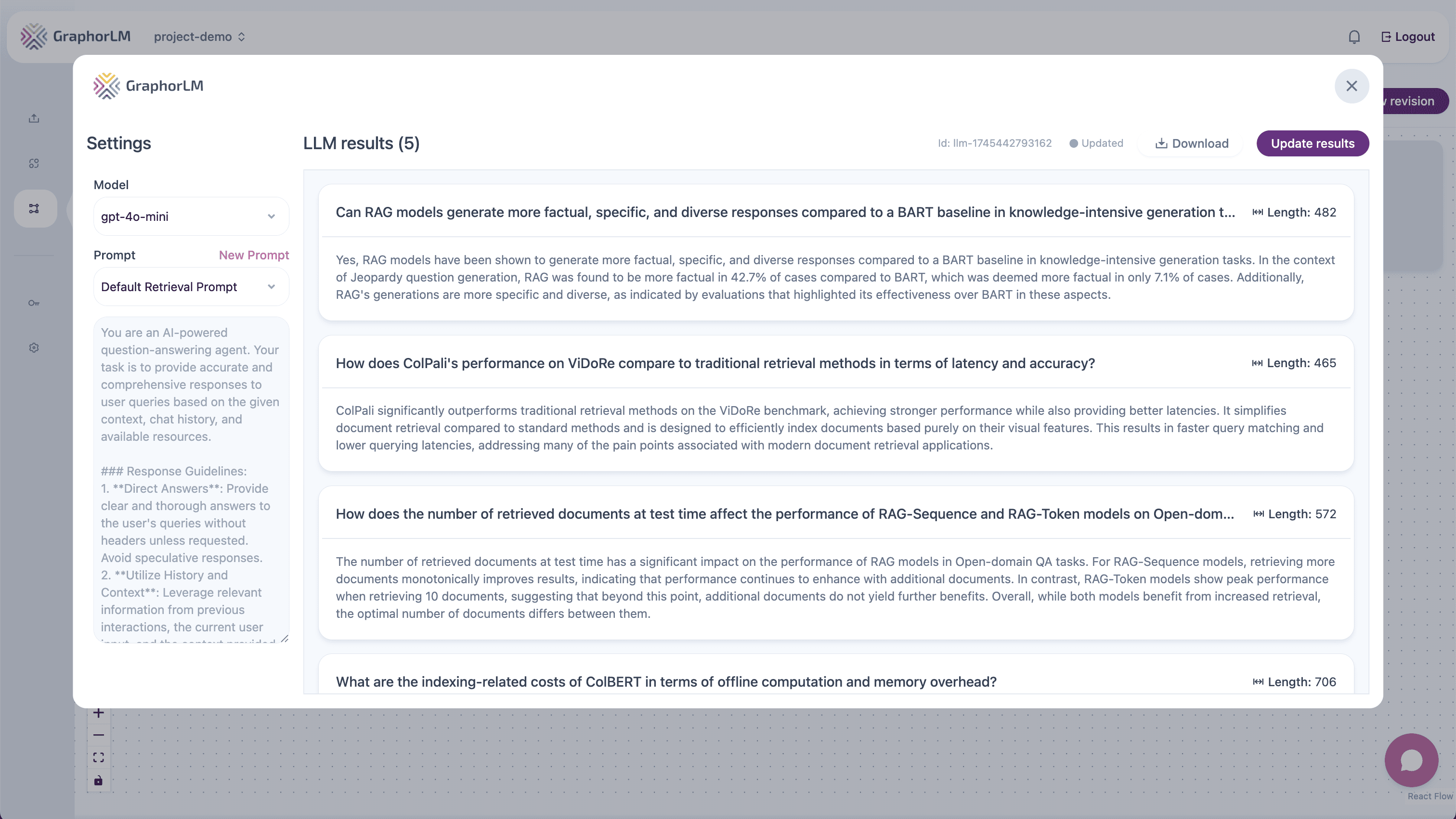
In Graphor's Flow Builder, the LLM component takes retrieved document chunks as input and uses them to generate natural language responses:
## Overview
While Graphor focuses primarily on high-quality information retrieval, you can optionally add an LLM component to your pipeline to transform retrieved information into natural language responses. It's important to note that **using an LLM node is completely optional** - many users can achieve their goals using just the Retrieval component as the final output.
### When to Use Retrieval Only
The Retrieval component can serve as the final stage of your RAG pipeline when:
* You need direct access to the most relevant document chunks
* You're integrating with your own custom LLM solution
* You want to implement your own response generation logic
* You're primarily focused on document search functionality
* You want to optimize resource usage for LLM API calls
### When to Add an LLM Component
Consider adding the LLM component when:
* You need natural language responses generated from retrieved content
* You want a complete end-to-end solution without additional integration
* Your use case requires synthesizing information across multiple documents
* You need complex reasoning beyond simple retrieval
## The LLM Component
In Graphor's Flow Builder, the LLM component takes retrieved document chunks as input and uses them to generate natural language responses:
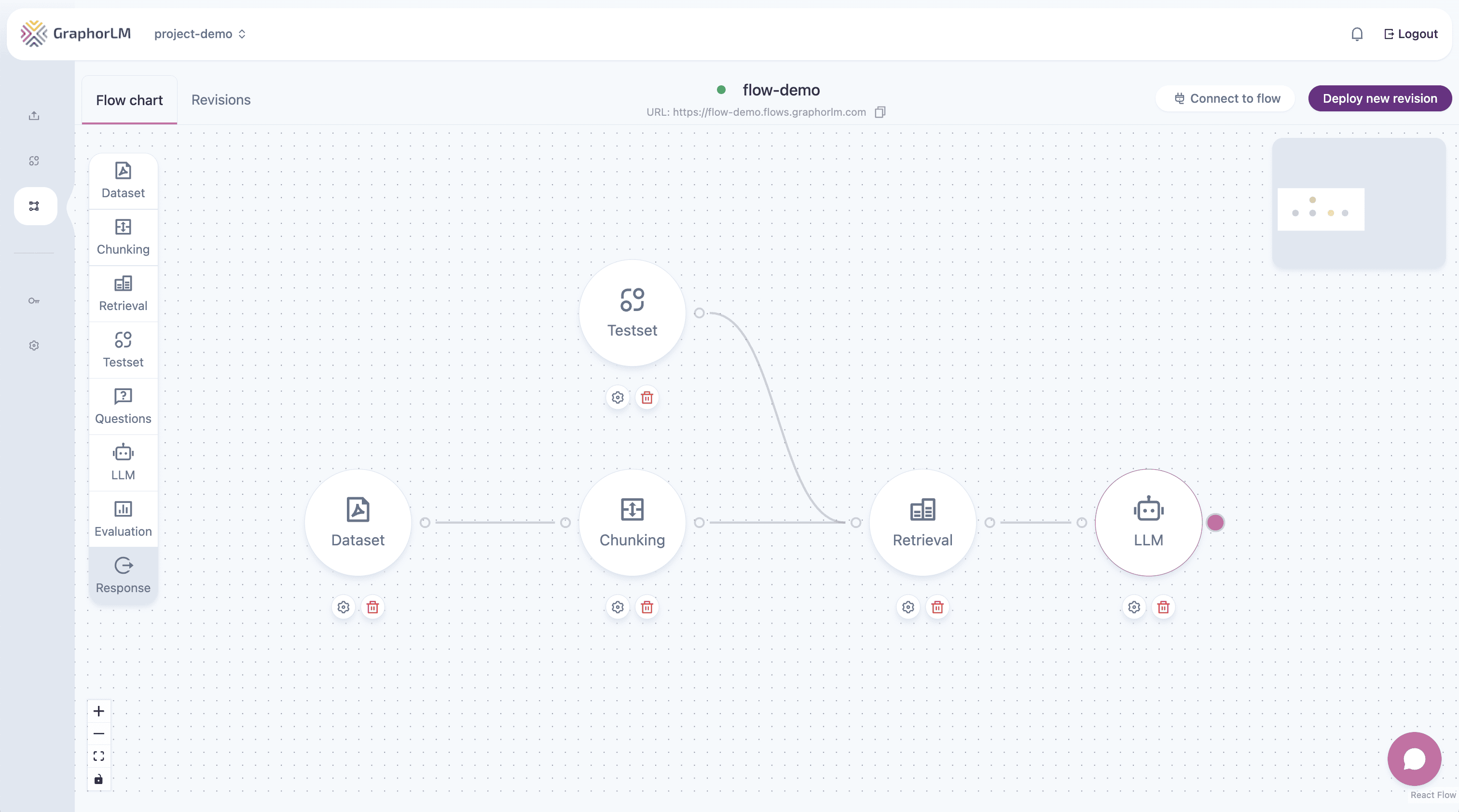 This component is where you configure which language model to use and how it should process the retrieved information to generate responses.
## Configuring the LLM Component
To set up the LLM component for your RAG pipeline:
1. Add the **LLM** component to your flow
2. Connect the output of your **Retrieval** component to the input of the LLM component
3. Double-click the LLM component to open its configuration panel
4. Configure the following settings:
### Model Selection
Graphor supports integration with various language models:
* **OpenAI models**:
* GPT-4o
* GPT-4 Mini
* **Local models** (when configured):
* Various open-source models depending on your deployment
Choose the model that best balances your requirements for quality, efficiency, and speed.
### System Prompt
The system prompt defines the LLM's behavior and instructions for generating responses. You can customize this prompt to:
* Define the assistant's personality and tone
* Specify formatting requirements
* Provide domain-specific context
* Set boundaries for what the assistant should and shouldn't do
Example system prompt:
```
You are a helpful assistant that answers questions based on the provided context.
Always cite your sources from the context.
If you don't know the answer, say "I don't have enough information" rather than making up an answer.
```
## Prompt Engineering
Effective prompt design is crucial for getting optimal results from the LLM component.
### Basic Prompt Structure
Graphor automatically structures prompts using this general pattern:
1. **System prompt**: Sets the tone and provides general instructions
2. **Retrieved context**: Inserts the information retrieved from your documents
3. **User query**: Adds the user's actual question
4. **Response instructions**: Provides specific guidance on how to answer
### Prompt Engineering Best Practices
1. **Be specific and clear**: Provide detailed instructions about what you want
2. **Use examples**: Include examples of desired responses when possible
3. **Structure matters**: Order your instructions in a logical sequence
4. **Test and iterate**: Refine prompts based on the responses you get
## Testing LLM Responses
To test your LLM configuration:
1. Make sure you have a **Question** or **Testset** node connected to your Retrieval nodes
2. Configure your LLM component
3. Click **Update Results** to see the generated response
4. Review the response for:
* Accuracy and factual correctness
* Adherence to the system prompt
* Proper use of retrieved information
* Overall usefulness and clarity
## Next Steps
After exploring LLM integration, you may want to learn more about:
Add LLM-based reranking before generating responses
Measure and improve your RAG pipeline performance
Deploy via REST API and MCP Server
Optimize retrieval to provide better context
This documentation is built and hosted on [Mintlify](https://mintlify.com), a developer documentation platform.
This component is where you configure which language model to use and how it should process the retrieved information to generate responses.
## Configuring the LLM Component
To set up the LLM component for your RAG pipeline:
1. Add the **LLM** component to your flow
2. Connect the output of your **Retrieval** component to the input of the LLM component
3. Double-click the LLM component to open its configuration panel
4. Configure the following settings:
### Model Selection
Graphor supports integration with various language models:
* **OpenAI models**:
* GPT-4o
* GPT-4 Mini
* **Local models** (when configured):
* Various open-source models depending on your deployment
Choose the model that best balances your requirements for quality, efficiency, and speed.
### System Prompt
The system prompt defines the LLM's behavior and instructions for generating responses. You can customize this prompt to:
* Define the assistant's personality and tone
* Specify formatting requirements
* Provide domain-specific context
* Set boundaries for what the assistant should and shouldn't do
Example system prompt:
```
You are a helpful assistant that answers questions based on the provided context.
Always cite your sources from the context.
If you don't know the answer, say "I don't have enough information" rather than making up an answer.
```
## Prompt Engineering
Effective prompt design is crucial for getting optimal results from the LLM component.
### Basic Prompt Structure
Graphor automatically structures prompts using this general pattern:
1. **System prompt**: Sets the tone and provides general instructions
2. **Retrieved context**: Inserts the information retrieved from your documents
3. **User query**: Adds the user's actual question
4. **Response instructions**: Provides specific guidance on how to answer
### Prompt Engineering Best Practices
1. **Be specific and clear**: Provide detailed instructions about what you want
2. **Use examples**: Include examples of desired responses when possible
3. **Structure matters**: Order your instructions in a logical sequence
4. **Test and iterate**: Refine prompts based on the responses you get
## Testing LLM Responses
To test your LLM configuration:
1. Make sure you have a **Question** or **Testset** node connected to your Retrieval nodes
2. Configure your LLM component
3. Click **Update Results** to see the generated response
4. Review the response for:
* Accuracy and factual correctness
* Adherence to the system prompt
* Proper use of retrieved information
* Overall usefulness and clarity
## Next Steps
After exploring LLM integration, you may want to learn more about:
Add LLM-based reranking before generating responses
Measure and improve your RAG pipeline performance
Deploy via REST API and MCP Server
Optimize retrieval to provide better context
This documentation is built and hosted on [Mintlify](https://mintlify.com), a developer documentation platform.