> ## Documentation Index
> Fetch the complete documentation index at: https://docs.graphorlm.com/llms.txt
> Use this file to discover all available pages before exploring further.
# Quickstart
> Ingest your data, process documents, and start extracting insights in minutes
This quickstart gets you up and running with Graphor. You'll upload a document, apply advanced parsing, extract structured data, and chat with your content.
## Step 1: Create Your Project
1. Sign up for a [Graphor Cloud account](https://app.graphorlm.com/register)
2. Login at [app.graphorlm.com/login](https://app.graphorlm.com/login)
3. Click **New project** and give it a name
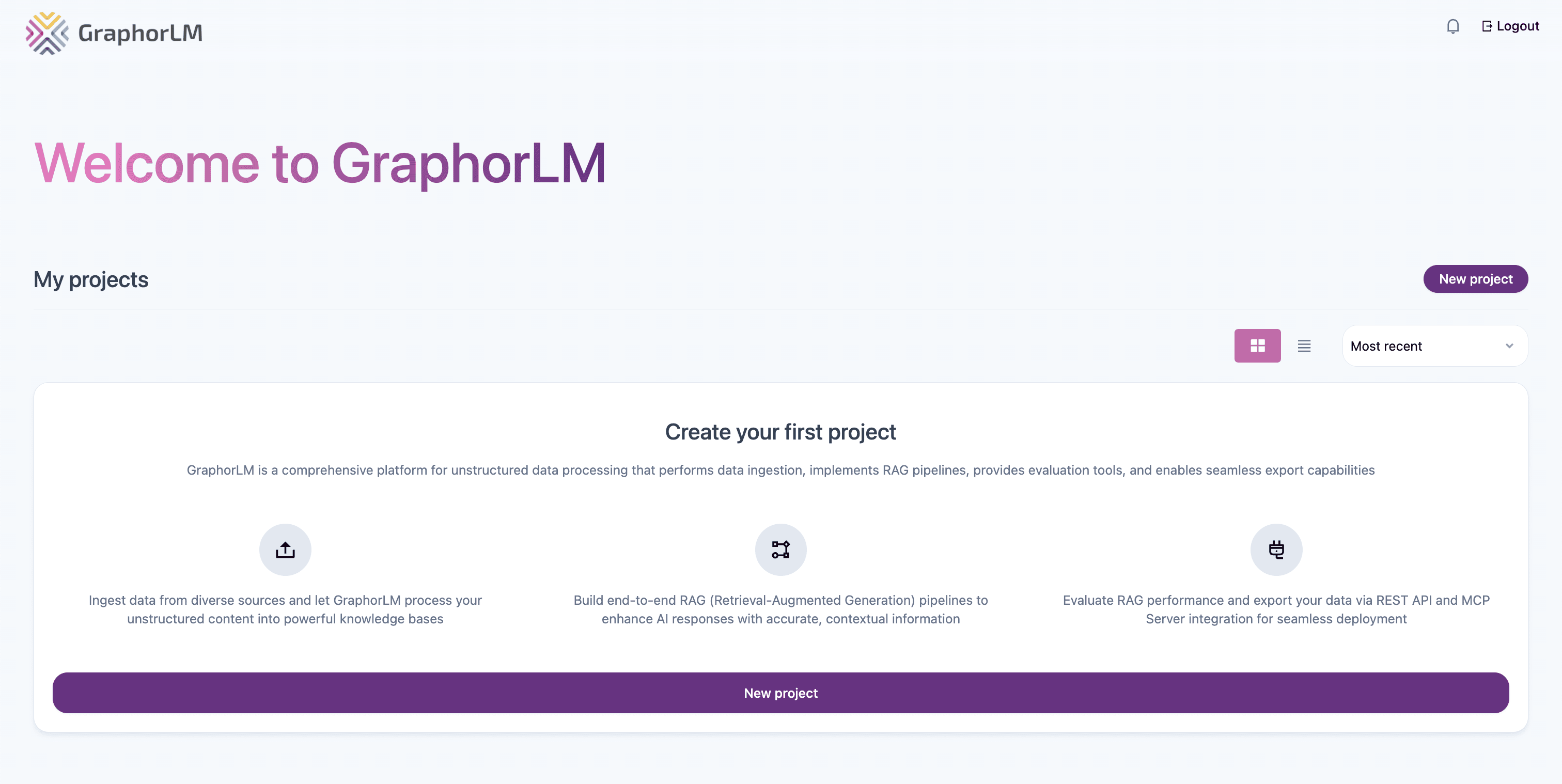 ## Step 2: Upload a Document
The fastest way to add a document is to **drag and drop** it directly onto the Sources page.
## Step 2: Upload a Document
The fastest way to add a document is to **drag and drop** it directly onto the Sources page.
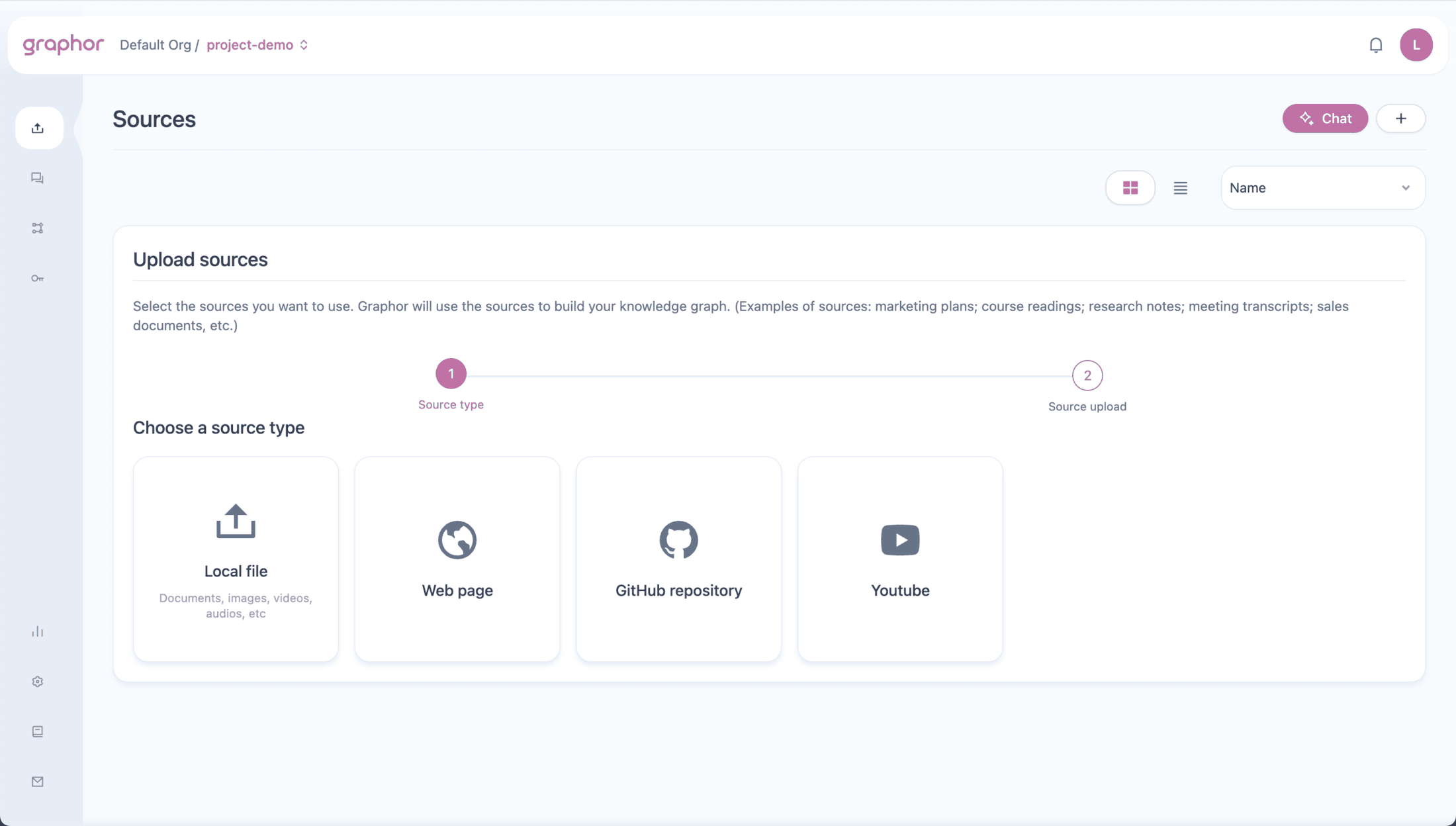 Graphor supports PDFs, Word documents, images, spreadsheets, and [25+ other formats](/guides/data-ingestion#supported-document-types).
You can also ingest content from URLs, GitHub repositories, and YouTube videos. See the [Data Ingestion guide](/guides/data-ingestion) for all options.
After uploading, Graphor automatically processes your document using the **Fast** parsing method. Wait for the status to change to **Processed**.
**Navigation tip:** Single-click on a source to select it. Double-click to open Source details.
## Step 3: Apply Advanced Parsing
For complex documents, you can apply more powerful parsing methods:
| Method | Best For |
| ------------ | --------------------------------------------------------- |
| **Fast** | Simple text documents (default) |
| **Balanced** | Complex layouts with OCR |
| **Accurate** | Specialized documents requiring highest accuracy |
| **Agentic** | Multi-page tables, diagrams, images with rich annotations |
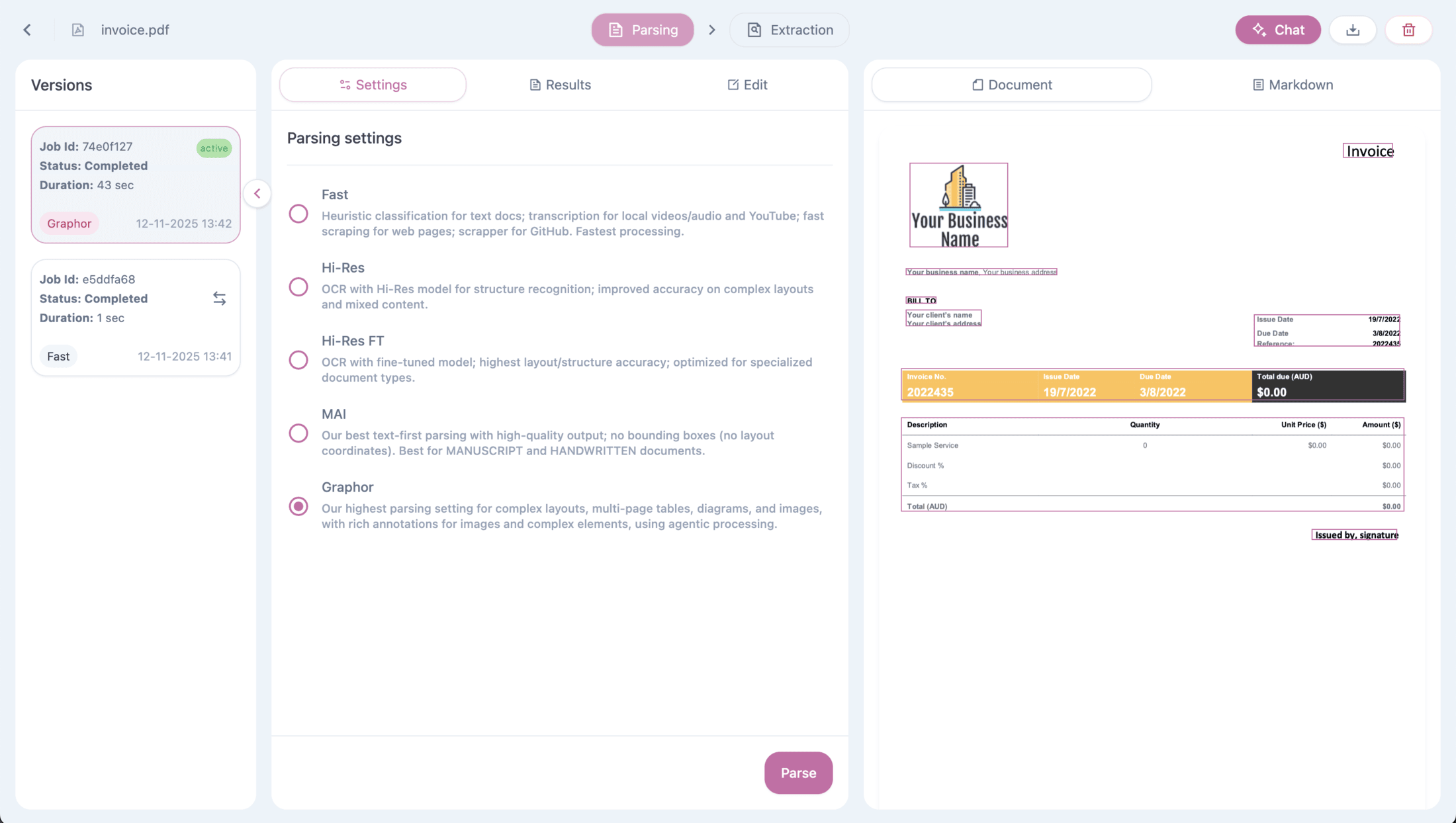
To apply a different parsing method:
1. Double-click on your document to open **Source details**
2. Go to the **Settings** tab
3. Select a parsing method
4. Click **Parse**
Graphor supports PDFs, Word documents, images, spreadsheets, and [25+ other formats](/guides/data-ingestion#supported-document-types).
You can also ingest content from URLs, GitHub repositories, and YouTube videos. See the [Data Ingestion guide](/guides/data-ingestion) for all options.
After uploading, Graphor automatically processes your document using the **Fast** parsing method. Wait for the status to change to **Processed**.
**Navigation tip:** Single-click on a source to select it. Double-click to open Source details.
## Step 3: Apply Advanced Parsing
For complex documents, you can apply more powerful parsing methods:
| Method | Best For |
| ------------ | --------------------------------------------------------- |
| **Fast** | Simple text documents (default) |
| **Balanced** | Complex layouts with OCR |
| **Accurate** | Specialized documents requiring highest accuracy |
| **Agentic** | Multi-page tables, diagrams, images with rich annotations |
To apply a different parsing method:
1. Double-click on your document to open **Source details**
2. Go to the **Settings** tab
3. Select a parsing method
4. Click **Parse**
 ### Viewing Results
After parsing, check the **Results** tab to see:
* **Document view** — Visual preview of parsed content
* **Markdown view** — Raw text output
* **Page navigation** — Browse multi-page documents
### Viewing Results
After parsing, check the **Results** tab to see:
* **Document view** — Visual preview of parsed content
* **Markdown view** — Raw text output
* **Page navigation** — Browse multi-page documents
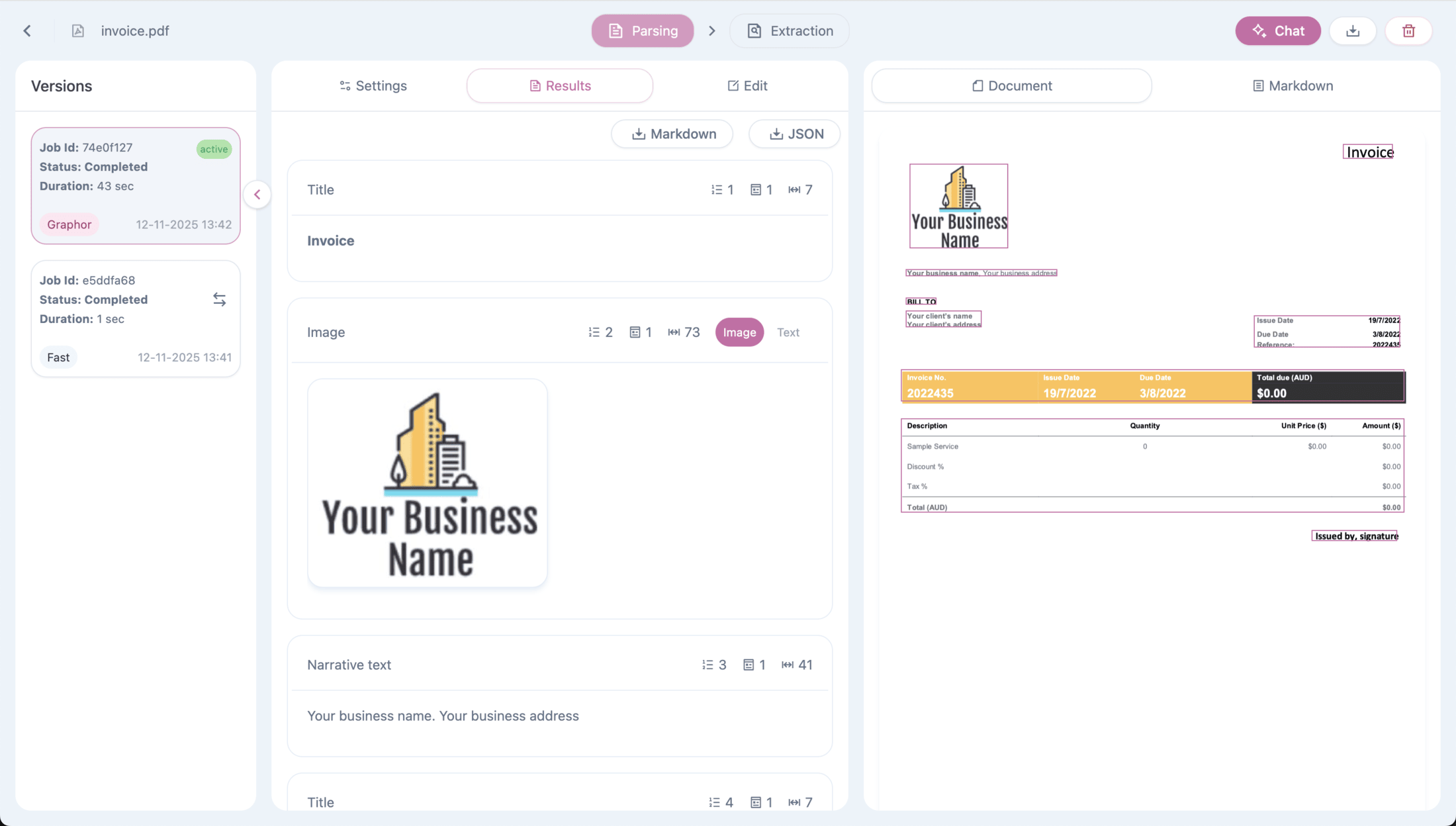 Each parsing run is saved in the **Versions** panel on the left. You can compare different methods and switch the active version at any time.
For detailed information about parsing methods and options, see the [Data Ingestion guide](/guides/data-ingestion#document-parsing-methods).
## Step 4: Extract Structured Data
Transform your documents into structured data using **LLM-powered extraction**.
1. In Source details, go to the **Extraction** tab
2. Add **instructions** to guide the extraction (optional)
3. Define your schema with fields:
* **Field name**: e.g., `invoice_number`
* **Field type**: Text, Number, Boolean, or Array
* **Description**: What to extract
4. Click **Extract**
**Example for invoice extraction:**
*Instructions:*
> Extract all invoice information. Use YYYY-MM-DD for dates and USD for amounts.
*Schema:*
| Field Name | Type | Description |
| ---------------- | ------ | --------------------------------- |
| `invoice_number` | Text | The unique invoice identifier |
| `date` | Text | Invoice date in YYYY-MM-DD format |
| `total_amount` | Number | Total amount due |
Each parsing run is saved in the **Versions** panel on the left. You can compare different methods and switch the active version at any time.
For detailed information about parsing methods and options, see the [Data Ingestion guide](/guides/data-ingestion#document-parsing-methods).
## Step 4: Extract Structured Data
Transform your documents into structured data using **LLM-powered extraction**.
1. In Source details, go to the **Extraction** tab
2. Add **instructions** to guide the extraction (optional)
3. Define your schema with fields:
* **Field name**: e.g., `invoice_number`
* **Field type**: Text, Number, Boolean, or Array
* **Description**: What to extract
4. Click **Extract**
**Example for invoice extraction:**
*Instructions:*
> Extract all invoice information. Use YYYY-MM-DD for dates and USD for amounts.
*Schema:*
| Field Name | Type | Description |
| ---------------- | ------ | --------------------------------- |
| `invoice_number` | Text | The unique invoice identifier |
| `date` | Text | Invoice date in YYYY-MM-DD format |
| `total_amount` | Number | Total amount due |
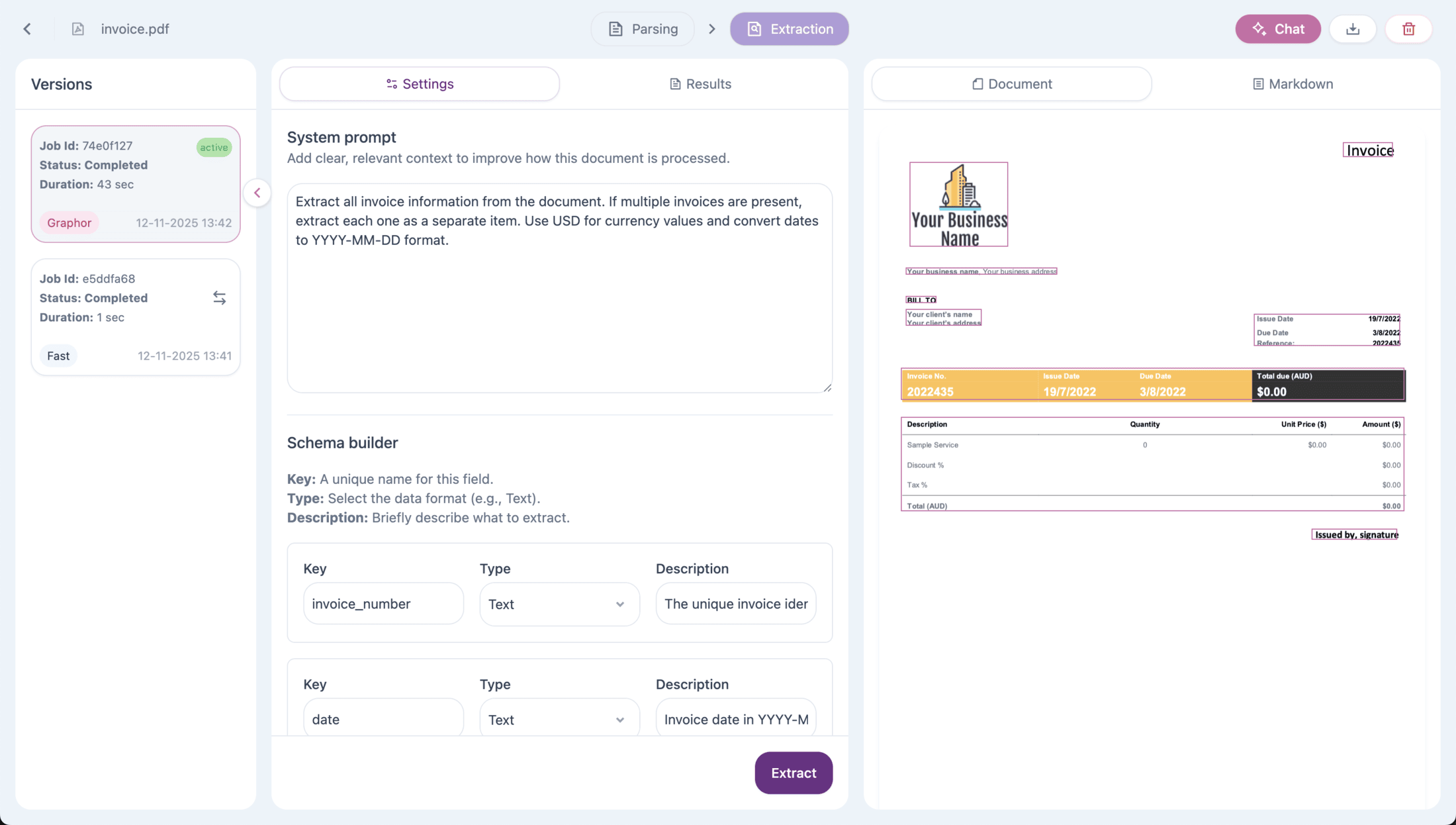 The results show extracted data with **page references** indicating where each item was found.
For more schema examples and best practices, see the [Data Extraction guide](/guides/data-extraction).
## Step 5: Chat with Your Documents
Click the **Chat** button in the top-right corner to start asking questions.
**Two chat options:**
* **Sources page** → Chat with all documents
* **Source details page** → Chat with one specific document
The results show extracted data with **page references** indicating where each item was found.
For more schema examples and best practices, see the [Data Extraction guide](/guides/data-extraction).
## Step 5: Chat with Your Documents
Click the **Chat** button in the top-right corner to start asking questions.
**Two chat options:**
* **Sources page** → Chat with all documents
* **Source details page** → Chat with one specific document
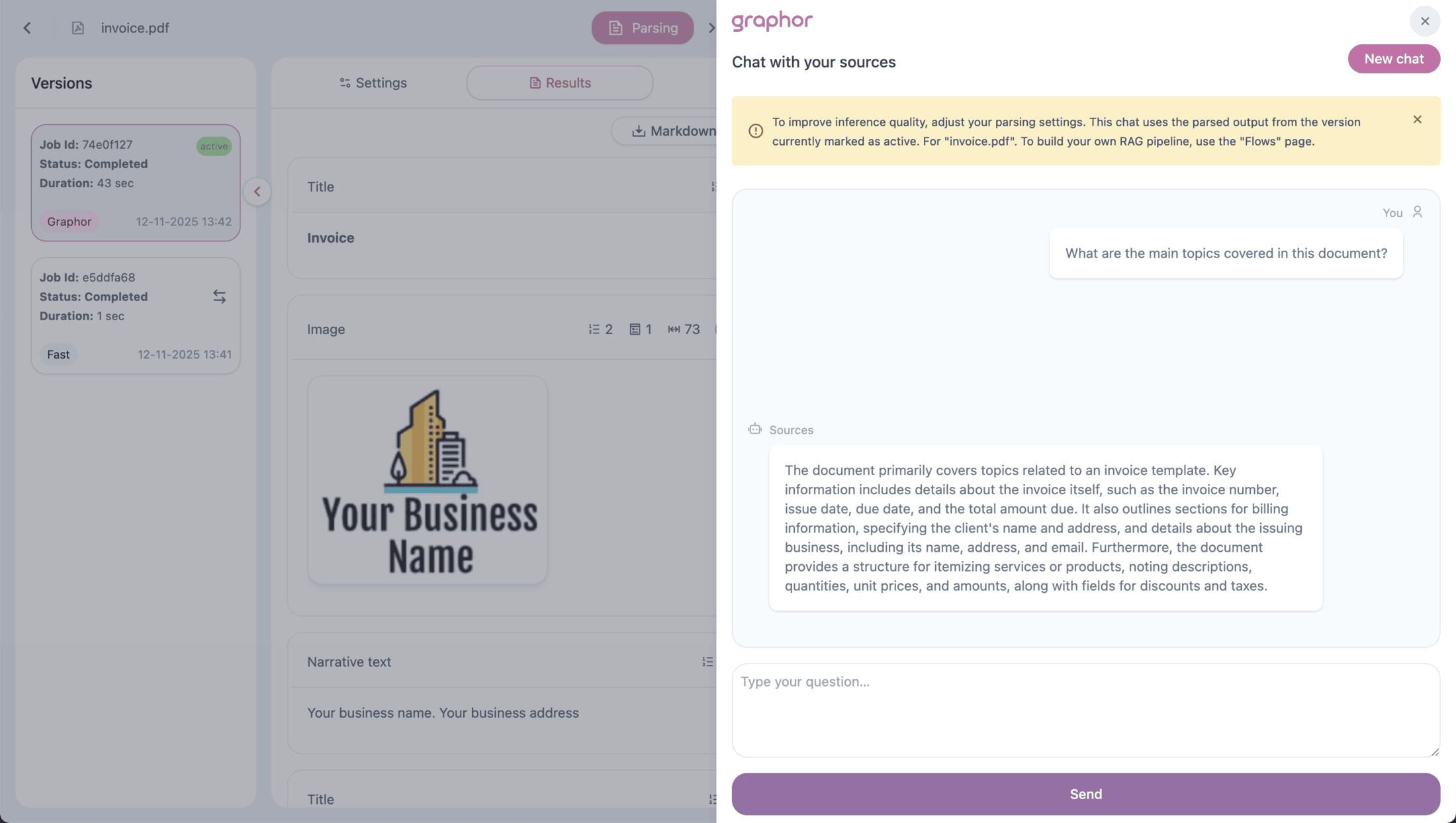 Ask questions in natural language:
> **You:** What are the main findings in this document?
>
> **Chat:** The document presents three main findings...
>
> **You:** Tell me more about the first one.
The chat maintains **conversational memory**, so follow-up questions understand previous context.
For tips on getting better answers, see the [Document Chat guide](/guides/document-chat).
***
## What's Next?
Deep dive into parsing methods, multiple source types, and OCR options
Advanced schema design and extraction best practices
Tips for asking better questions and API integration
Ask questions in natural language:
> **You:** What are the main findings in this document?
>
> **Chat:** The document presents three main findings...
>
> **You:** Tell me more about the first one.
The chat maintains **conversational memory**, so follow-up questions understand previous context.
For tips on getting better answers, see the [Document Chat guide](/guides/document-chat).
***
## What's Next?
Deep dive into parsing methods, multiple source types, and OCR options
Advanced schema design and extraction best practices
Tips for asking better questions and API integration