

Overview
Data Extraction uses LLM-powered processing to intelligently extract structured information from your documents. This is perfect for:- Invoice processing — Extract invoice numbers, dates, amounts, and line items
- Contract analysis — Pull key terms, parties, dates, and obligations
- Resume parsing — Extract contact info, skills, experience, and education
- Product catalogs — Capture product names, prices, descriptions, and specifications
- Research papers — Extract titles, authors, abstracts, and citations
How It Works
- Parse your document — First, ingest and parse your document using any parsing method
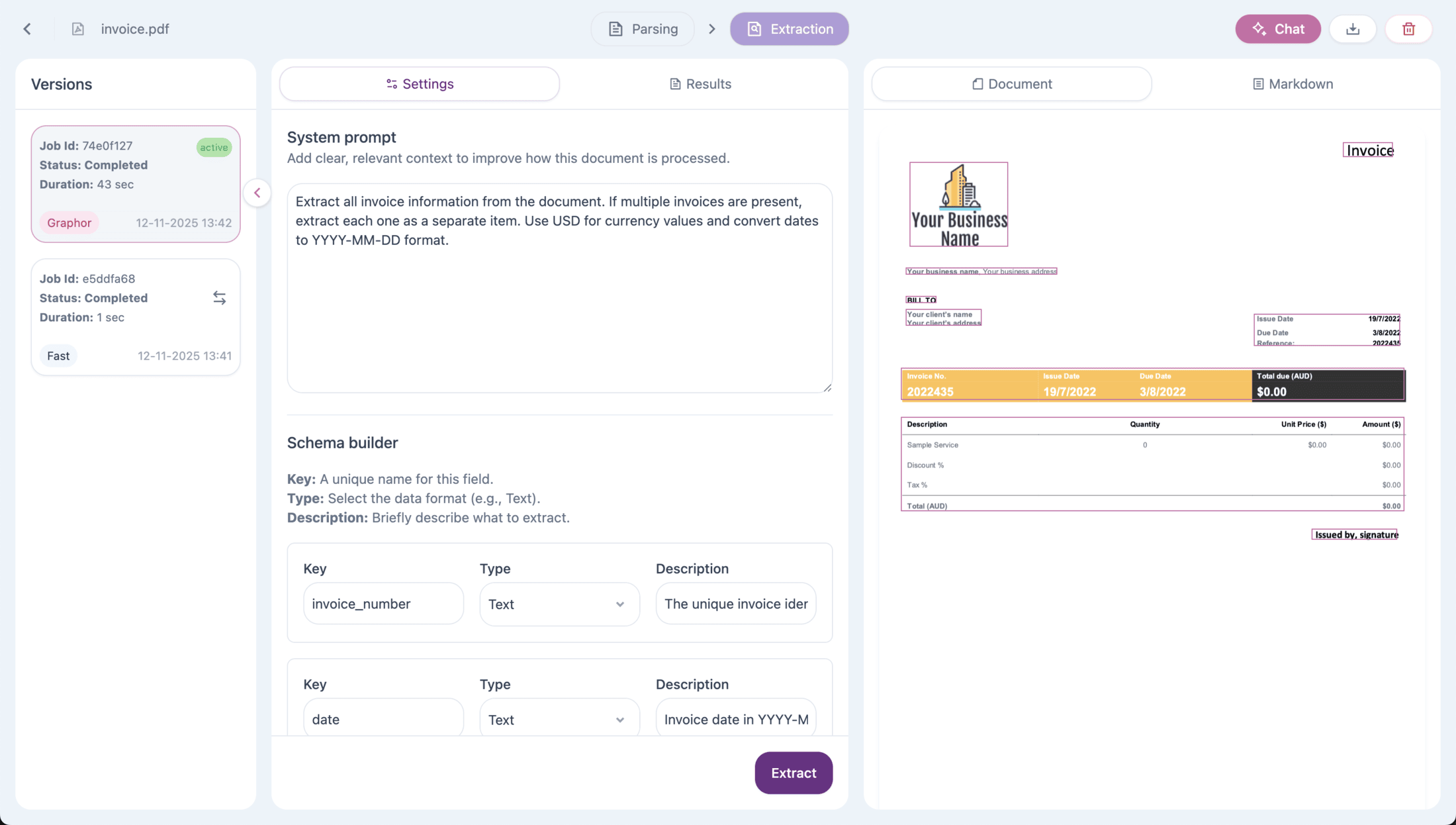
- Define your schema — Specify the fields you want to extract with types and descriptions
- Add instructions — Provide optional natural language guidance for the extraction
- Run extraction — The LLM processes the document and extracts matching data
- Review results — View extracted data with page-level provenance
Accessing Data Extraction
To access the Data Extraction feature:- Navigate to Sources in the left sidebar
- Double-click on a processed document to open Source details
- Click the Extraction tab at the top center of the page
Defining Your Schema
The extraction schema defines what information to extract from your document. Each field in your schema has three components:Field Name
The key that will be used in the extracted data output. Use descriptive, snake_case names:invoice_numbertotal_amountcustomer_nameline_items
Field Type
Choose the appropriate data type for each field:Object Type
Use the Object type when you need to group related fields together. This is useful for:- Addresses (street, city, zip, country)
- Contact information (name, email, phone)
- Specifications (weight, dimensions, material)
Array Type
Use the Array type for extracting lists of items. Arrays require you to specify the Items Type:
When using Object as the items type, you define nested fields that apply to each item in the array.
Field Description
A natural language description that helps the LLM understand what to extract. Be specific and include:- What the field represents
- Expected format (if applicable)
- Any special instructions
- “The unique invoice identifier, usually starting with ‘INV-’”
- “Total amount due in USD, as a number without currency symbols”
- “List of all product names mentioned in the document”
- “The number”
- “Amount”
- “Items”
Writing Effective Instructions
Instructions provide additional context and guidance for the extraction process. They help the LLM understand:- Scope — What parts of the document to focus on
- Format — How to format the extracted data
- Edge cases — How to handle ambiguous situations
- Multiple items — How to handle documents with multiple extractable entities
Example Instructions
For invoice extraction:Running an Extraction
Once your schema and instructions are ready:- Review your field definitions in the schema builder
- Add your instructions in the instructions text area
- Click Extract to start the extraction process
- Wait for the extraction to complete (processing time varies by document size)
Viewing Results
After extraction completes, the Results view displays:Extracted Data Table
A structured table showing all extracted items with:- Each row representing one extracted entity
- Columns for each field in your schema
- Values extracted from the document
Page References
Each extracted item includes page numbers indicating where the information was found. This provides:- Traceability — Know exactly where each piece of data came from
- Verification — Quickly check the source for accuracy
- Context — Understand the surrounding content
Export Options
Export your extracted data for use in other systems:- JSON — Structured data for programmatic use
- CSV — Tabular format for spreadsheets and databases
Schema Examples
Invoice Extraction
Resume Parsing
Product Catalog
Best Practices
Schema Design
- Start simple — Begin with a few essential fields, then expand
- Be specific — Detailed descriptions produce better results
- Use appropriate types — Match the field type to expected data
- Consider edge cases — Think about what happens when data is missing
- Use objects for structured data — Group related fields (address, contact info) using Object type
- Use arrays for repeating items — Line items, work history, and skills are perfect for Array type
- Keep nesting shallow — Avoid deeply nested structures for better extraction accuracy
- Choose the right array items type — Use Text arrays for simple lists (tags, skills), Object arrays for complex items (line items, experience)
Instructions
- Be explicit about format — Specify date formats, currency handling, etc.
- Handle multiples — Clarify how to handle multiple items (e.g., multiple invoices)
- Set defaults — Explain what to do when information isn’t found
- Provide context — Mention the document type if relevant
Parsing Method Selection
The quality of extraction depends on the quality of parsing. For best results:- Complex layouts — Use Accurate or Agentic parsing methods
- Scanned documents — Use Balanced or Accurate for better OCR
- Simple text documents — Fast method is usually sufficient
API Integration
Data Extraction is available via the REST API for programmatic use:Basic Extraction
Extraction with Object and Array Types
Troubleshooting
Missing or incorrect extractions
Missing or incorrect extractions
If fields are missing or incorrect:
- Improve field descriptions with more specific guidance
- Add detailed instructions for edge cases
- Try a different parsing method for better document understanding
- Verify the document is properly parsed before extraction
Slow extraction times
Slow extraction times
Extraction time depends on document size and complexity:
- Large documents take longer to process
- Complex schemas with many fields require more processing
- Consider extracting from specific page ranges for large documents
Poor results on scanned documents
Poor results on scanned documents
For scanned or image-heavy documents:
- Use Balanced, Accurate, or Agentic parsing methods
- Ensure the document was properly OCR’d during parsing
- Check the parsing results before running extraction
Handling multiple items
Handling multiple items
When extracting multiple items (e.g., multiple invoices in one document):
- Explicitly state in instructions how to handle multiples
- Each extracted entity appears as a separate row in results
- Page references help identify which item came from where
Next Steps
API Reference
Integrate extraction into your applications using the REST API
Document Chat
Ask questions about your documents using natural language
Data Ingestion
Improve parsing quality for better extraction results