

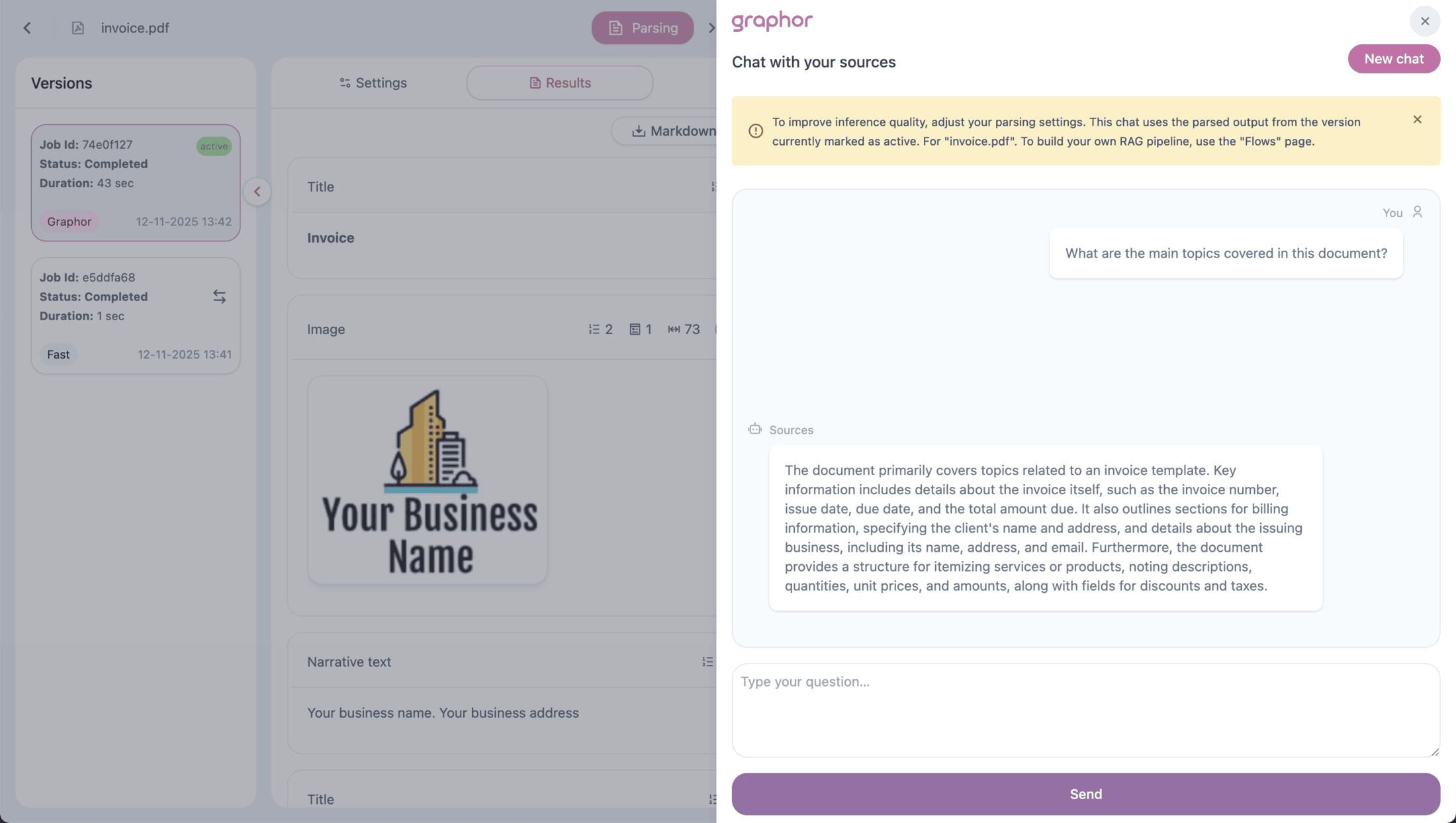
Overview
Document Chat enables you to:- Ask questions naturally — No query syntax needed, just ask like you would ask a colleague
- Get grounded answers — Responses are based on your actual document content
- Maintain conversation context — Follow-up questions understand previous context
- Scope to specific documents — Focus on one document or search across all sources
Document Chat uses the active parsing version of each document. The quality of answers directly depends on how well your documents were parsed. For better results, adjust the parsing settings and use advanced methods like Accurate or Agentic for complex documents. See Data Ingestion for details.
Chat Options
Graphor provides two chat interfaces depending on your needs:Chat with All Sources
Access the global chat from the Sources page by clicking the Chat button in the top-right corner. This mode searches across all ingested documents in your project, making it ideal for:- Finding information when you don’t know which document contains it
- Comparing information across multiple sources
- Getting a comprehensive view of your entire knowledge base
- Answering questions that span multiple documents
Chat with a Specific Document
Access the focused chat from the Source details page (double-click on any source) by clicking the Chat button in the top-right corner. This mode searches only within the selected document, making it ideal for:- Deep-diving into a specific document’s content
- Avoiding noise from other sources
- Getting precise answers from a known document
- Analyzing a single file in detail
How to Use Document Chat
Starting a Conversation
- Navigate to Sources (for all documents) or double-click a specific source (for single document)
- Click the Chat button in the top-right corner
- Type your question in the chat input
- Press Enter or click Send
Asking Effective Questions
Document Chat works best with clear, specific questions: Good questions:- “What are the main findings in the Q3 financial report?”
- “Summarize the key terms of the service agreement”
- “What products are mentioned and what are their prices?”
- “Who are the parties involved in this contract?”
- “Tell me everything” → Too broad, be more specific
- “What?” → Provide context about what you’re looking for
- “Info” → Ask a complete question
Following Up
Document Chat maintains conversational memory, so you can ask follow-up questions without repeating context:You: What products are mentioned in the catalog? Chat: The catalog mentions three products: Product A (299), and Product C ($149)… You: Which one is the most expensive? Chat: Based on the catalog, Product B is the most expensive at $299… You: What features does it have? Chat: Product B includes the following features: …
Starting Fresh
To start a new conversation without previous context, click the Clear button.Use Cases
Research & Analysis
- “What methodology was used in this study?”
- “Summarize the literature review section”
- “What are the limitations mentioned by the authors?”
Document Review
- “What are the key obligations in this contract?”
- “When does the agreement expire?”
- “What are the payment terms?”
Knowledge Discovery
- “What topics are covered in these documents?”
- “Find all mentions of [specific term]”
- “What recommendations are made?”
Quick Lookups
- “What is the contact information listed?”
- “What is the total amount on this invoice?”
- “When was this document created?”
Best Practices
For Better Answers
- Be specific — The more specific your question, the more precise the answer
- Provide context — If asking about something specific, mention what you’re looking for
- Use follow-ups — Build on previous answers rather than asking unrelated questions
- Ask one thing at a time — Complex questions with multiple parts may get partial answers
Choosing the Right Scope
Parsing Quality Matters
Document Chat uses the active parsing version of each document to generate answers. The quality of responses directly depends on the parsing quality. Recommended parsing methods by document type:
If you’re getting poor answers:
- Double-click the document to open Source details
- Go to the Settings tab
- Select a more advanced parsing method
- Click Parse and wait for processing
API Integration
Document Chat is available via the REST API:Parameters
Response
conversation_id in subsequent requests to maintain conversation context.
Troubleshooting
Getting irrelevant answers
Getting irrelevant answers
If answers don’t match your questions:
- Be more specific in your question
- Use the single-document chat if you know which file has the answer
- Check that documents are properly parsed
- Try rephrasing your question
Document content not found
Document content not found
If the chat can’t find information you know exists:
- Verify the document status is “Processed”
- Check the active parsing version has the content
- Try a different parsing method for better extraction
- Ensure the content isn’t in images (may need OCR)
Slow responses
Slow responses
Response time depends on:
- Number of documents being searched
- Document size and complexity
- Question complexity
Lost conversation context
Lost conversation context
If the chat seems to forget previous context:
- Don’t refresh the page mid-conversation
- Use the same chat session for related questions
- The API requires passing
conversation_idto maintain context
Next Steps
Data Extraction
Extract structured data from your documents with custom schemas
Data Ingestion
Improve parsing quality for better chat responses
API Reference
Integrate Document Chat into your applications