

Prerequisites
Before starting, ensure you have:- A Graphor project with ingested and parsed documents
- At least one source with status “Processed”
If you haven’t ingested documents yet, see the Quickstart or Data Ingestion guide first.
Pipeline Overview
You’ll build this pipeline:| Node | Purpose |
|---|---|
| Dataset | Selects which documents to include |
| Chunking | Splits documents into searchable chunks |
| Retrieval | Finds relevant chunks based on queries |
| Question/Testset | Provides queries to test the pipeline |
| LLM | Generates natural language responses |
| Response | Outputs the final result |
Step 1: Create a New Flow
- Navigate to Flows in the left sidebar
- Click New Flow
- Enter a name (e.g., “my-first-rag”)
- Click Create
Step 2: Add the Dataset Node
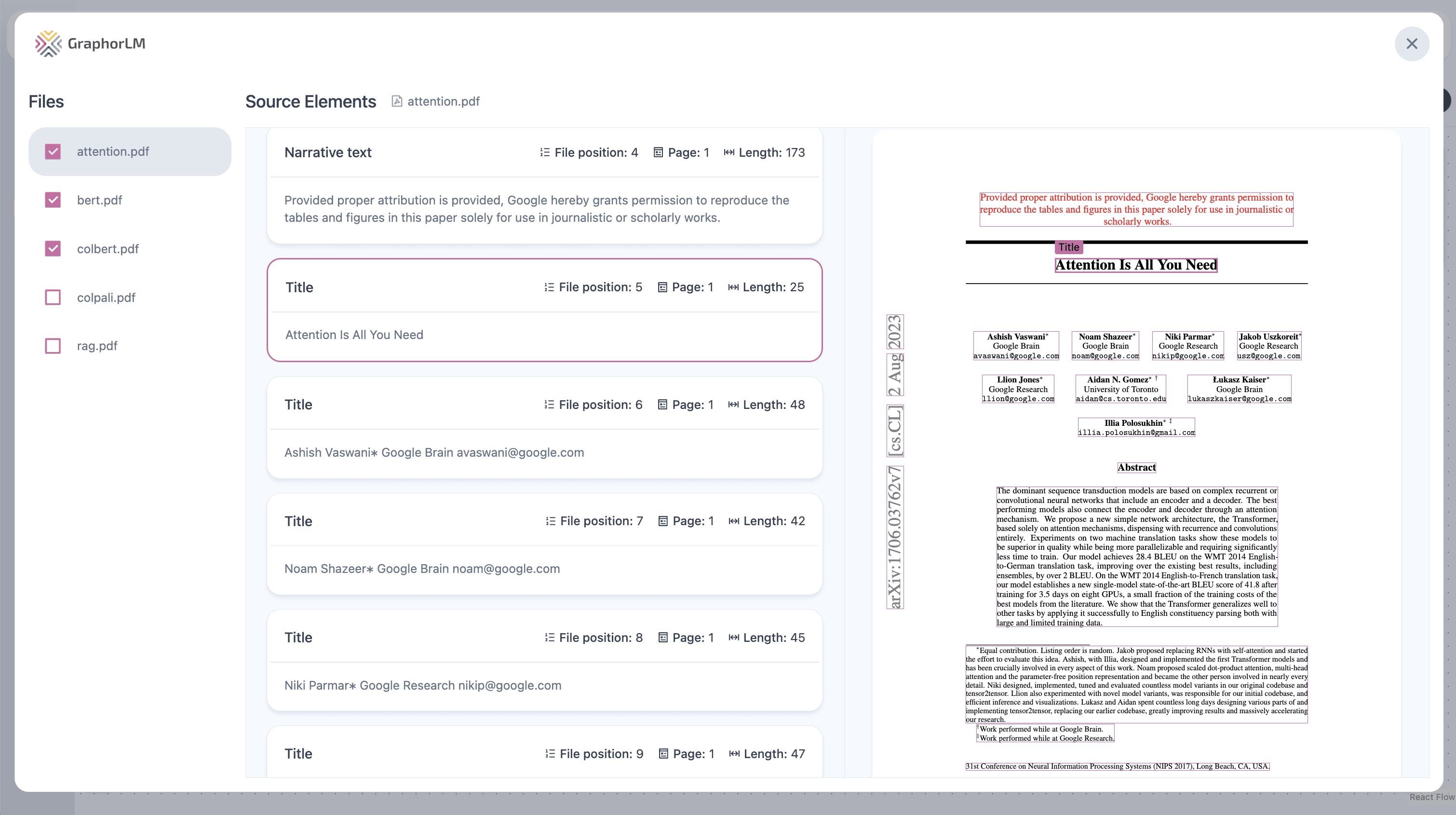
The Dataset node is the starting point — it defines which documents your pipeline will use.- Drag the Dataset node from the sidebar onto the canvas
- Double-click the node to open its configuration
- Select the documents you want to include:
- Check individual files, or
- Select all files using the header checkbox
- Close the configuration panel
Step 3: Add the Chunking Node
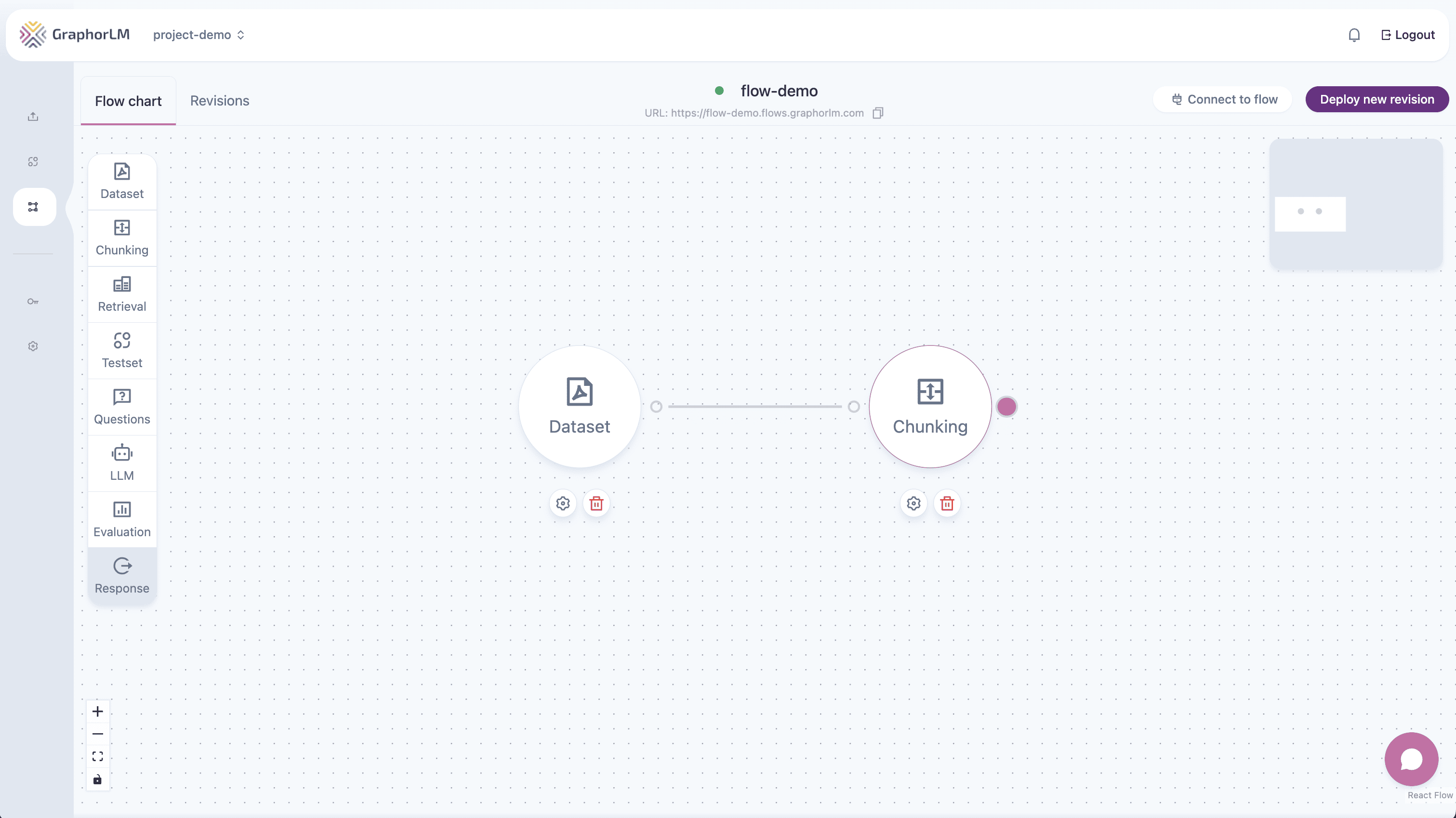
The Chunking node splits your documents into smaller pieces that can be efficiently searched.- Drag the Chunking node onto the canvas
- Connect Dataset → Chunking by dragging from Dataset’s output (right) to Chunking’s input (left)
- Double-click Chunking to configure:
| Setting | Recommended Value | Description |
|---|---|---|
| Embedding Model | text-embedding-3-small | Converts text to vectors for search |
| Elements to Remove | Header, Footer, Page number | Removes noise from chunks |
| Splitter | Smart chunking | Preserves semantic meaning |
| Chunk Size | 5000 | Maximum characters per chunk |
- Click Update Results to process the chunks
- Review the chunking results to verify quality
Step 4: Add the Retrieval Node
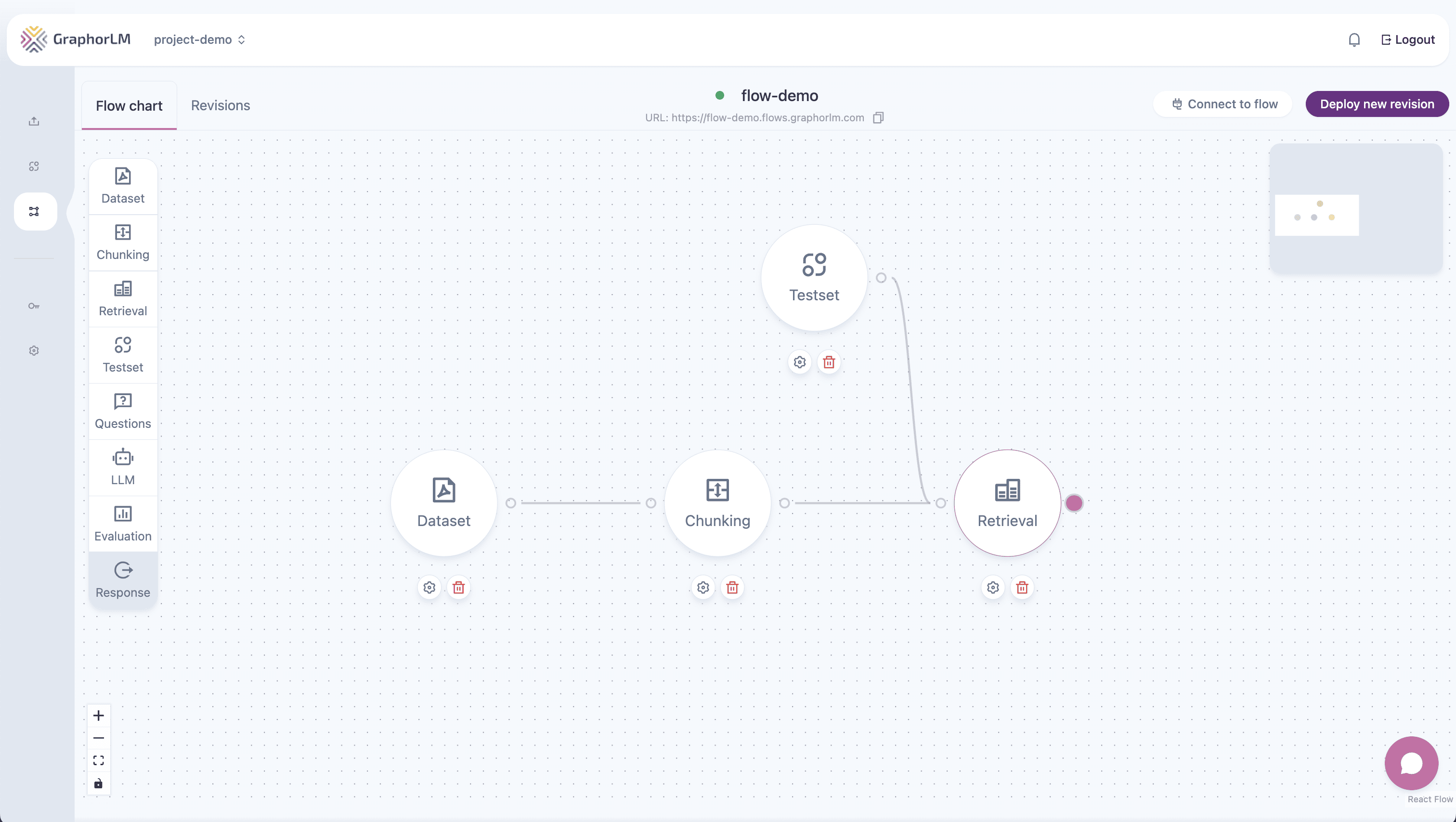
The Retrieval node searches your chunks to find information relevant to user queries.- Drag the Retrieval node onto the canvas
- Connect Chunking → Retrieval
- Double-click Retrieval to configure:
| Setting | Recommended Value | Description |
|---|---|---|
| Search Type | Similarity | Semantic search using embeddings |
| Top K | 5 | Number of chunks to retrieve |
| Score Threshold | 0.5 | Minimum relevance score (0-1) |
Step 5: Add a Question Node for Testing
Before adding the LLM, let’s test that retrieval works correctly using a Question node.- Drag the Questions node onto the canvas
- Connect Questions → Retrieval (Questions provides input to Retrieval)
- Double-click Questions to configure:
- Enter a test question related to your documents
- Example: “What is the main topic of this document?”
- Click Update Results on the Retrieval node
- Review the retrieved chunks — do they contain relevant information?
Step 6: Add the LLM Node
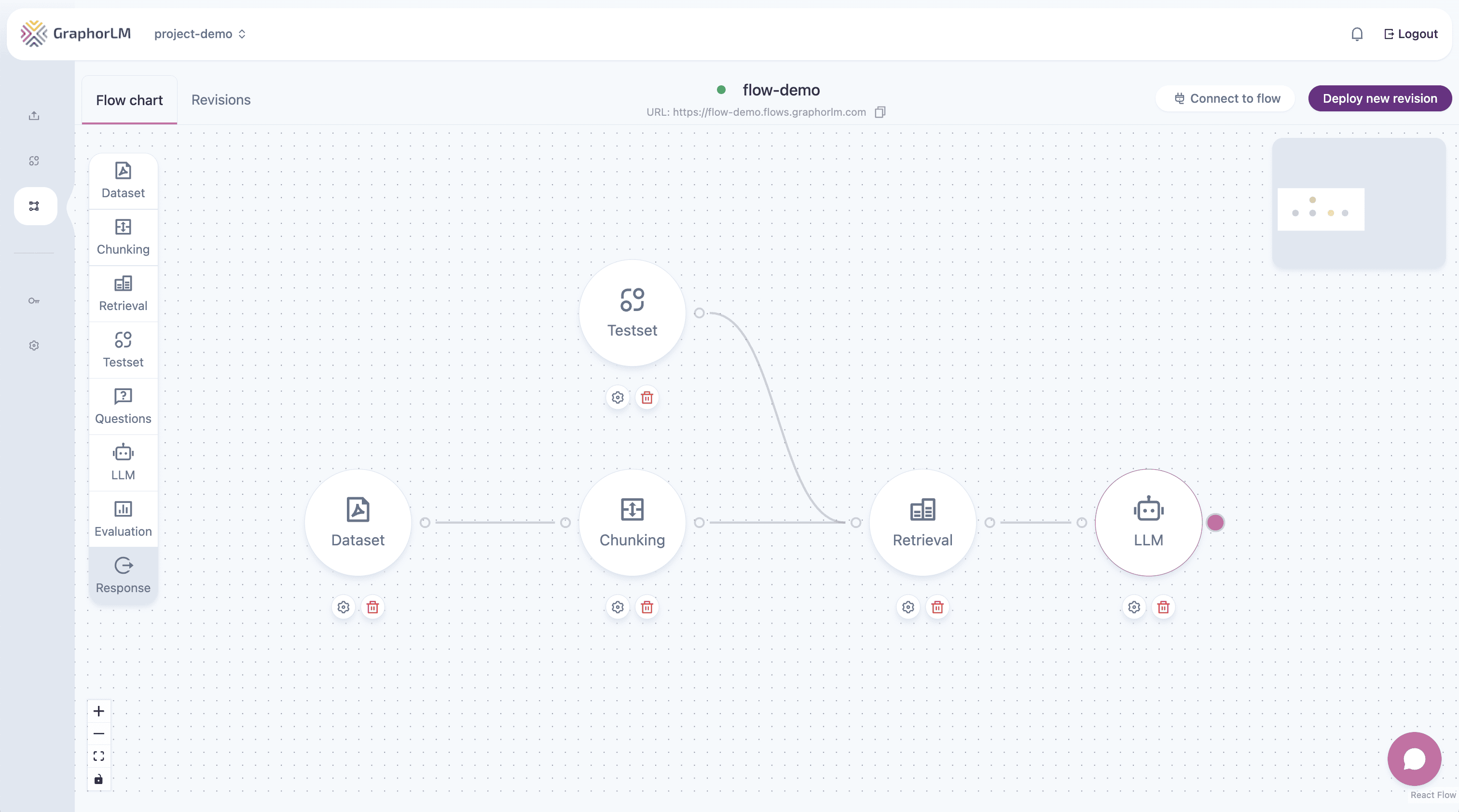
The LLM node takes the retrieved chunks and generates a natural language response.- Drag the LLM node onto the canvas
- Connect Retrieval → LLM
- Double-click LLM to configure:
| Setting | Recommended Value | Description |
|---|---|---|
| Model | GPT-4o or GPT-4 Mini | The language model to use |
| System Prompt | See example below | Instructions for the LLM |
- Click Update Results to see the generated response
Step 7: Add the Response Node
The Response node provides the final output of your pipeline.- Drag the Response node onto the canvas
- Connect LLM → Response
- Click Update Results on the Response node
Testing with Testsets
For more comprehensive testing, use a Testset instead of (or in addition to) single Questions.Creating a Testset
- Navigate to Testsets in the left sidebar
- Click New Testset
- Add multiple test questions:
- Questions that cover different topics in your documents
- Questions with varying complexity
- Edge cases (questions that might not have answers)
- Optionally add expected answers for evaluation
- Save the testset
Using a Testset in Your Flow
- Drag the Testset node onto the canvas
- Connect Testset → Retrieval (same as Questions)
- Double-click Testset and select your created testset
- Click Update Results to run all questions through the pipeline
- Review results for each question
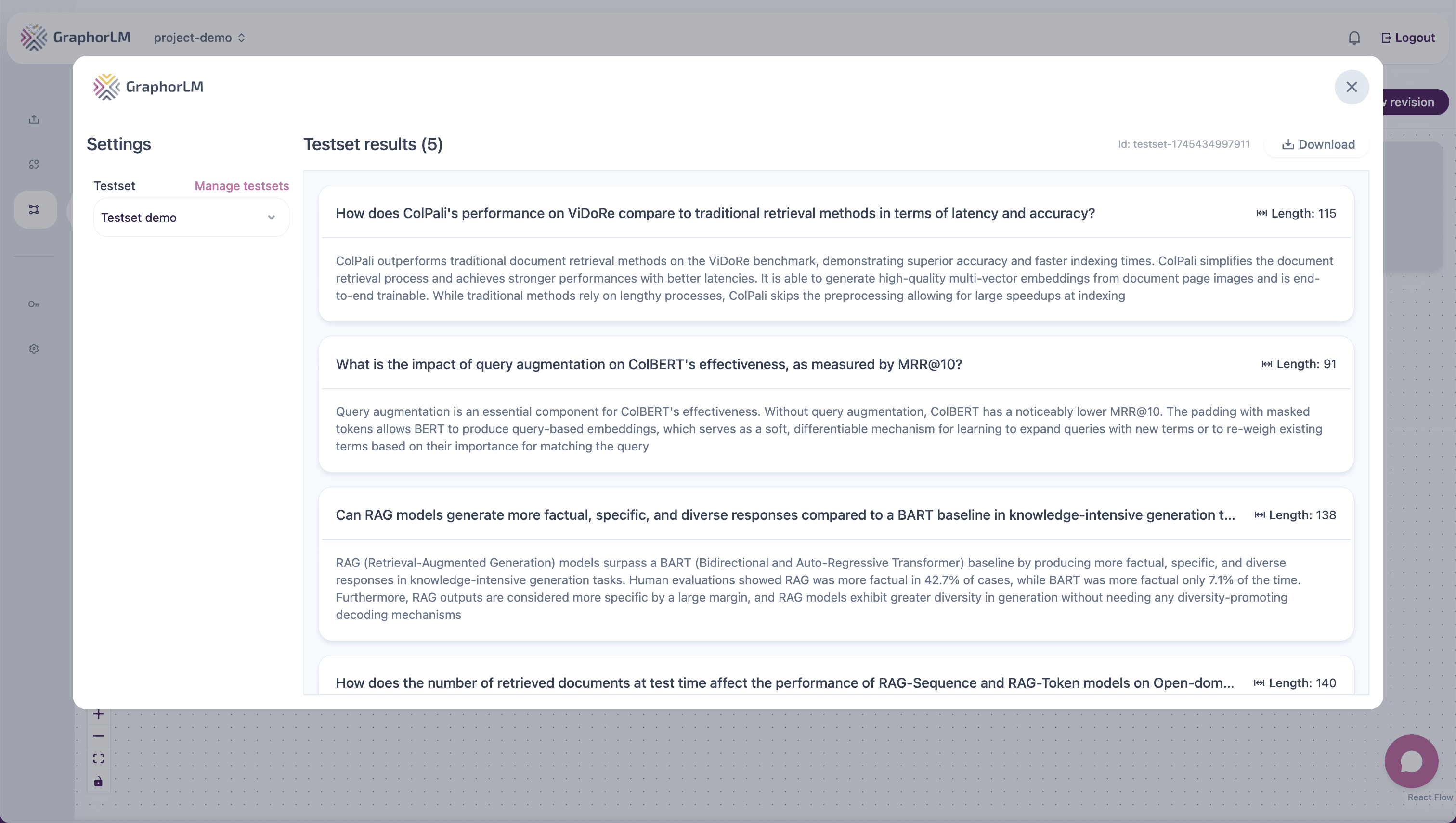
You can have both Question and Testset nodes connected to the same Retrieval node for flexible testing.
Deploying Your Pipeline
Once your pipeline is working well:- Click Deploy new revision in the top-right corner
- Add a Tool description (important for MCP integration):
- Enable Display this revision immediately
- Click Create
- REST API — For custom application integration
- MCP Server — For AI assistant integration (Claude, Cursor)
Quick Reference: Node Settings
| Node | Key Settings |
|---|---|
| Dataset | Select files to include |
| Chunking | Embedding model, Splitter type, Chunk size |
| Retrieval | Search type, Top K, Score threshold |
| Question | Test queries for quick testing |
| Testset | Multiple queries for comprehensive testing |
| LLM | Model selection, System prompt |
| Response | Output format |
Troubleshooting
Nodes won't connect
Nodes won't connect
- Ensure you’re dragging from output (right) to input (left)
- Check that the connection is allowed (see node compatibility)
- Verify previous nodes are properly configured
Retrieval returns irrelevant results
Retrieval returns irrelevant results
- Lower the Score Threshold
- Increase Top K
- Try Hybrid search type
- Check if documents are properly parsed
LLM gives poor responses
LLM gives poor responses
- Improve the System Prompt with clearer instructions
- Increase Top K to provide more context
- Try a different LLM model
- Check that retrieval is returning relevant chunks
Pipeline is slow
Pipeline is slow
- Reduce the number of selected documents
- Lower Top K value
- Use a faster embedding model
- Use GPT-4 Mini instead of GPT-4o
Next Steps
Smart RAG
Simplify your pipeline with automatic chunking and retrieval
Chunking
Explore different chunking strategies for better results
Retrieval
Optimize search parameters and algorithms
Integrate Workflow
Deploy via REST API or MCP Server