

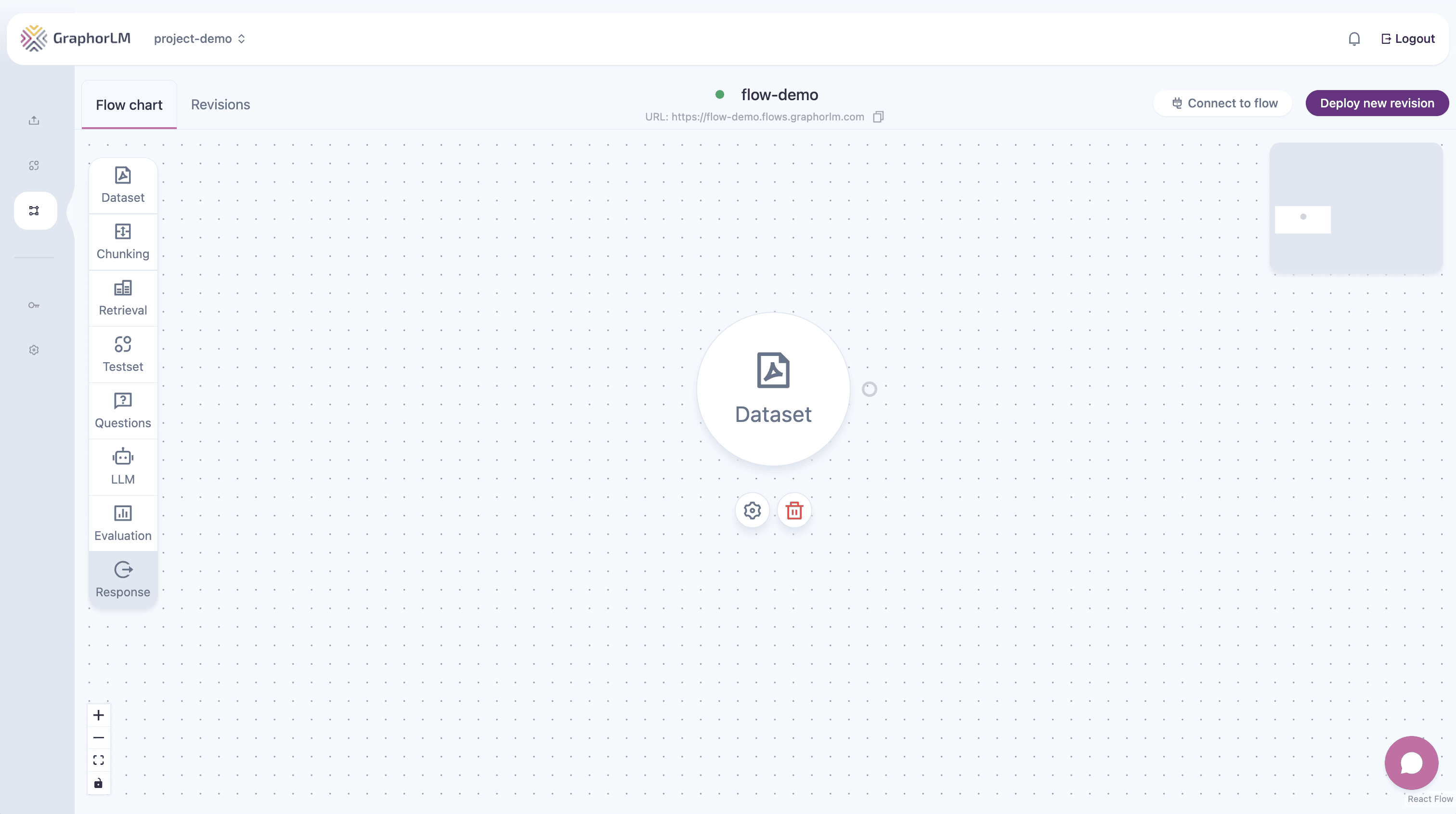
Overview
The Dataset node serves as the data foundation for your RAG pipeline:- Selects sources — Choose which documents to include in the pipeline
- Loads parsed content — Retrieves the active parsing version of each selected document
- Feeds downstream nodes — Provides document elements to Chunking and other nodes
The Dataset node uses the active parsing version of each selected document. For better pipeline results, ensure your documents are parsed with appropriate methods. See Data Ingestion for parsing options.
Using the Dataset Component
In the Flow Builder, the Dataset component is typically the first node in your pipeline:Adding the Dataset Node
- Open the Flow Builder by navigating to Flows and creating or editing a flow
- Drag the Dataset component from the left sidebar onto the canvas
- Double-click the node to open its configuration panel
Connecting to Other Nodes
The Dataset node can connect to the following nodes:| Target Node | Use Case |
|---|---|
| Chunking | Most common — splits documents into retrievable chunks |
| Smart RAG | Intelligent retrieval with automatic optimization |
| Agentic RAG | Agent-based retrieval with reasoning capabilities |
| Graph RAG | Knowledge graph-enhanced retrieval |
| Raptor RAG | Hierarchical retrieval with summarization |
| Extractor | Extract structured information from documents |
| Response | Direct output without additional processing |
Configuring the Dataset Node
Double-click the Dataset node to open the configuration panel: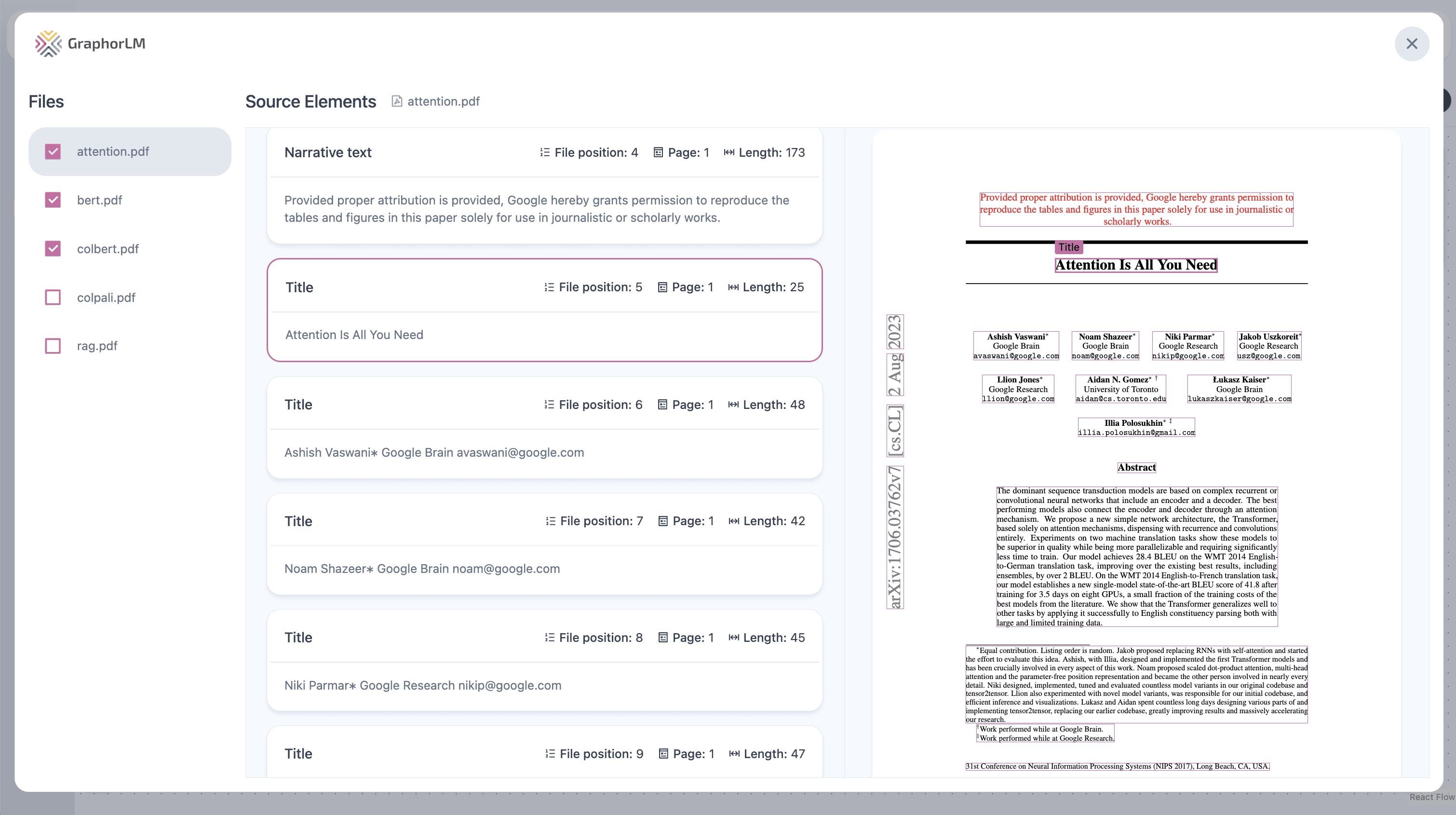
File Selection
The configuration panel displays all available sources in your project. You can:- Select individual files — Check the boxes next to specific documents
- Select all files — Use the header checkbox to include all sources
- Deselect files — Uncheck to exclude documents from the pipeline
- File name — The source document name
- Checkbox — Selection state for the pipeline
Source Elements Preview
When you select files, you can preview the elements that will be processed:- File position — Order of elements within the file
- Page number — Which page the element appears on
- Length — Character count of the element
- Content preview — Text content of the element
- Element type — Classification (Title, Narrative text, Table, etc.)
How Dataset Works with Parsing
The Dataset node loads elements from the active parsing version of each selected document:- Elements are loaded — All classified elements (titles, paragraphs, tables, etc.) from selected files
- Metadata is preserved — File name, page number, position, and element type
- Content flows downstream — Elements are passed to connected nodes (typically Chunking)
Impact of Parsing Quality
The quality of your RAG pipeline starts with parsing quality:| Parsing Method | Impact on Dataset |
|---|---|
| Fast | Basic element classification, suitable for simple documents |
| Balanced | Better structure recognition, improved element boundaries |
| Accurate | Highest accuracy for specialized documents |
| VLM | Best text quality for manuscripts, handwritten documents |
| Agentic | Rich annotations for tables, diagrams, images |
Common Configurations
Include All Sources
Best for:- Projects with a cohesive document collection
- General-purpose knowledge bases
- When all documents are relevant to expected queries
Selective Sources
Best for:- Topic-specific pipelines (e.g., only technical docs, only contracts)
- Multi-tenant applications with document segregation
- A/B testing different document sets
Single Document Pipeline
Best for:- Document-specific Q&A applications
- Testing and debugging
- Focused analysis of one source
Pipeline Examples
Basic RAG Pipeline
Smart RAG Pipeline
Graph RAG Pipeline
Evaluation Pipeline
Troubleshooting
No elements loading from Dataset
No elements loading from Dataset
If the Dataset shows no elements:
- Verify selected files have status “Processed”
- Check that files have an active parsing version
- Ensure the parsing completed successfully
- Try reprocessing the document with a different parsing method
Poor quality elements
Poor quality elements
If elements appear incorrectly classified or fragmented:
- Review the source document’s parsing results
- Use a more advanced parsing method (Balanced, VLM, or Agentic)
- Check if element types are being properly identified
Slow pipeline performance
Slow pipeline performance
If the pipeline is slow:
- Reduce the number of selected files
- Consider using the Colpali embedding model only for visual documents
- Check if very large documents are causing bottlenecks
Dataset not connecting to Chunking
Dataset not connecting to Chunking
If you can’t connect the nodes:
- Ensure you’re dragging from the output (right side) of Dataset
- Connect to the input (left side) of Chunking
- Verify both nodes are properly placed on the canvas
Best Practices
- Start with parsed documents — Ensure all selected sources are fully processed before building the pipeline
- Use appropriate parsing — Match parsing methods to document complexity
- Be selective — Only include documents relevant to your use case
- Preview elements — Check the Dataset configuration to verify element quality
- Test incrementally — Start with a few documents and expand after validating results
Next Steps
After configuring your Dataset node, continue building your RAG pipeline:Chunking
Split documents into optimal chunks for retrieval
Smart RAG
Simplify your pipeline with automatic chunking and retrieval
Data Ingestion
Improve source documents with advanced parsing methods
Evaluation
Measure and improve your RAG pipeline performance