

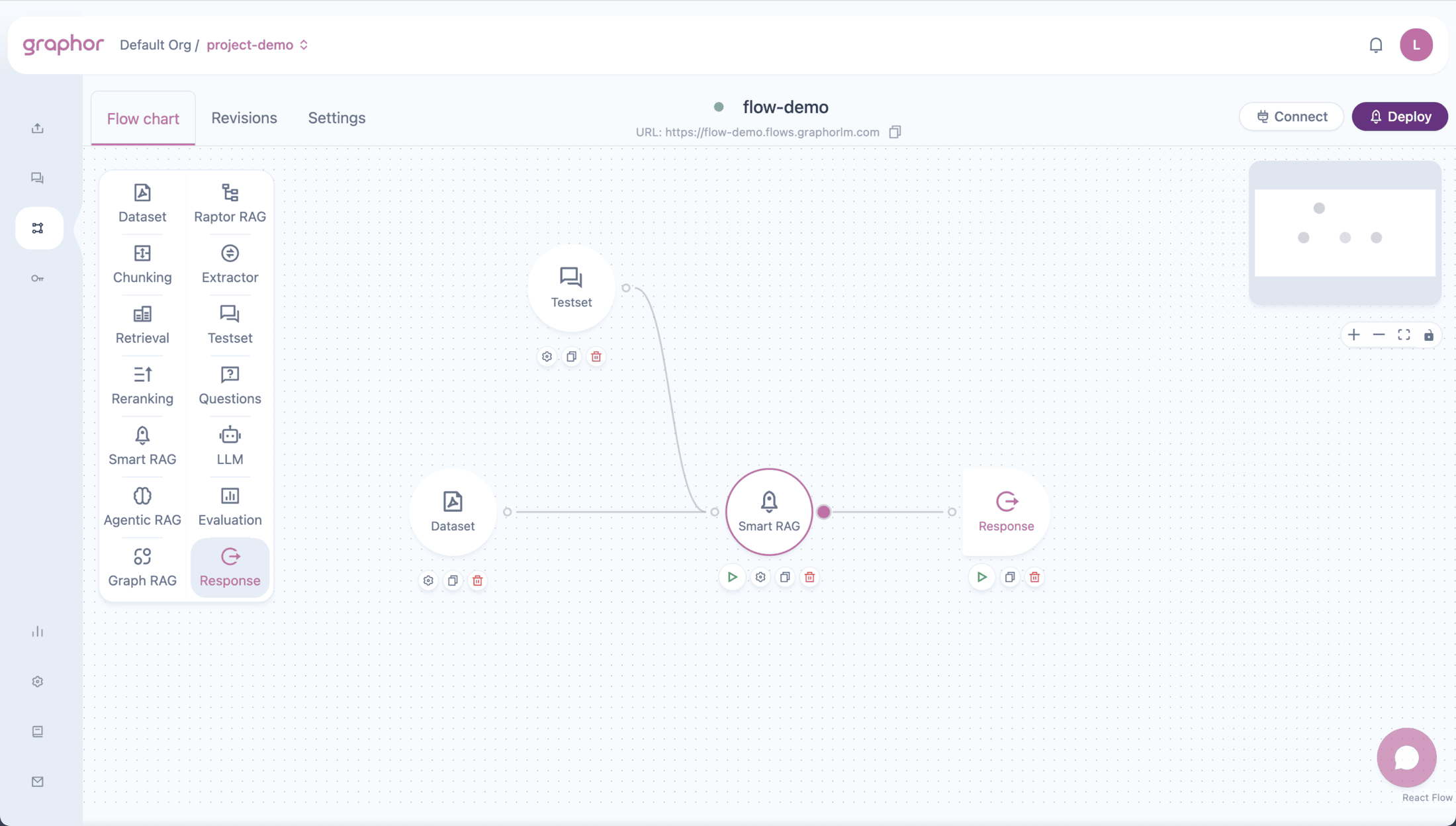
Overview
The Smart RAG node streamlines RAG pipelines by:- Automatic chunking — Splits documents using title-based chunking with optimal settings
- Embedding generation — Creates vector embeddings using
text-embedding-3-small - Similarity retrieval — Finds relevant chunks based on query similarity
- Built-in optimization — Uses pre-configured settings tuned for best performance
Smart RAG is ideal when you want a quick, high-quality RAG setup without manually configuring separate Chunking and Retrieval nodes. For more control, use the individual nodes instead.
When to Use Smart RAG
| Scenario | Recommendation |
|---|---|
| Quick RAG setup | ✅ Recommended — Get started fast with optimized defaults |
| Standard documents | ✅ Recommended — Works well for most document types |
| Prototyping | ✅ Recommended — Rapid iteration without configuration |
| Custom chunking needs | ⚠️ Use separate Chunking node — More control over settings |
| Custom retrieval logic | ⚠️ Use separate Retrieval node — Full configuration access |
| ColPali/visual documents | ⚠️ Use separate Chunking node — More embedding options |
Using the Smart RAG Node
Adding the Smart RAG Node
- Open your flow in the Flow Builder
- Drag the Smart RAG node from the sidebar onto the canvas
- Connect your Dataset node to Smart RAG
- Connect a Question or Testset node for queries
- Double-click the Smart RAG node to configure
Input Connections
The Smart RAG node accepts input from:| Source Node | Purpose |
|---|---|
| Dataset | Required — Provides documents to process |
| Question | Provides queries for retrieval (simulation/testing) |
| Testset | Provides multiple queries for comprehensive testing |
Output Connections
The Smart RAG node can connect to:| Target Node | Use Case |
|---|---|
| Reranking | Further improve result quality with LLM-based scoring |
| LLM | Generate natural language responses |
| Analysis | Evaluate retrieval performance |
| Response | Output retrieved results directly |
Configuring the Smart RAG Node
Double-click the Smart RAG node to open the configuration panel: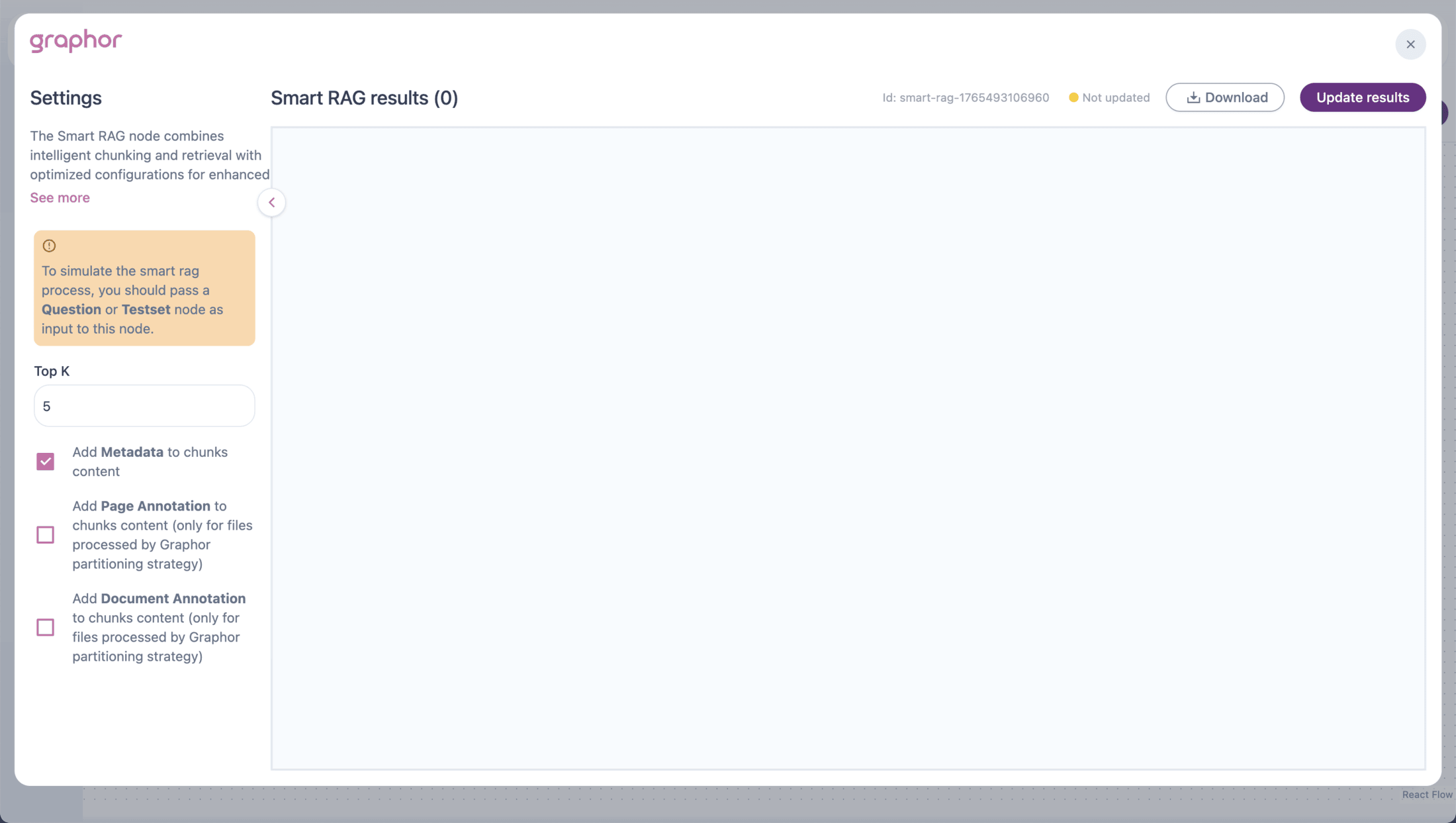
Top K
The number of chunks to retrieve for each query:| Value | Use Case |
|---|---|
| 1-3 | Precise, focused answers |
| 4-6 | Balanced coverage (default: 5) |
| 7-10 | Comprehensive context |
Add Metadata
When enabled, includes document metadata in chunk content:- File name
- Page number
- Position information
Add Page Annotation
When enabled, includes page-level annotations in chunk content.Only available for files processed with the Agentic parsing method.
Add Document Annotation
When enabled, includes document-level annotations in chunk content.Only available for files processed with the Agentic parsing method.
Built-in Configuration
Smart RAG uses optimized default settings:Chunking Settings
| Setting | Value | Description |
|---|---|---|
| Embedding Model | text-embedding-3-small | OpenAI’s efficient embedding model |
| Splitter | Title-based | Preserves document structure |
| Chunk Size | 5000 | Balanced size for context and precision |
Retrieval Settings
| Setting | Value | Description |
|---|---|---|
| Search Type | Similarity | Semantic vector search |
| Score Threshold | 0.5 | Minimum relevance score |
Pipeline Examples
Simple Smart RAG Pipeline
Dataset → Smart RAG → LLM → Response ← Question Best for: Quick Q&A setup with minimal configuration.Smart RAG with Reranking
Dataset → Smart RAG → Reranking → LLM → Response ← Question Best for: Higher quality results by adding LLM-based relevance scoring.Smart RAG Evaluation Pipeline
Dataset → Smart RAG → Analysis ← Testset Best for: Testing retrieval quality across multiple questions.Comparison Pipeline
| Path | Flow |
|---|---|
| Path A | Dataset → Smart RAG → Analysis |
| Path B | Dataset → Chunking → Retrieval → Analysis |
Viewing Results
After running the pipeline (click Update Results):- Results show documents grouped by question
- Each result displays:
- Question — The query being answered
- Content — Retrieved chunk text
- Score — Similarity score
- File name — Source document
- Page number — Location in document
JSON View
Toggle JSON to see the raw result structure:Smart RAG vs. Separate Nodes
| Aspect | Smart RAG | Chunking + Retrieval |
|---|---|---|
| Setup time | Fast (one node) | Longer (two nodes) |
| Configuration | Limited options | Full control |
| Embedding models | text-embedding-3-small only | Multiple options including ColPali |
| Chunk strategies | Title-based only | 5 strategies available |
| Retrieval types | Similarity only | Similarity, Full text, Hybrid |
| Best for | Quick setup, prototyping | Production, fine-tuning |
Best Practices
- Start with Smart RAG — Use it for initial prototyping, then switch to separate nodes if needed
- Use Testsets — Evaluate performance with multiple questions before deployment
- Consider Reranking — Add Reranking node for improved precision
- Check document parsing — Ensure documents are parsed with appropriate methods for best chunking results
- Enable annotations — Use page/document annotations for Agentic-parsed documents
Troubleshooting
No results showing
No results showing
If Smart RAG returns no results:
- Verify a Question or Testset node is connected
- Check that Dataset contains processed documents
- Ensure documents have status “Processed”
- Try lowering the score threshold (not configurable in Smart RAG; use separate nodes)
Poor retrieval quality
Poor retrieval quality
If results aren’t relevant:
- Check document parsing quality
- Try adding Reranking node for better scoring
- Consider using separate Chunking + Retrieval for more control
- Verify questions are well-formed
Slow processing
Slow processing
If Smart RAG is slow:
- Reduce number of documents in Dataset
- Lower Top K value
- Check document sizes (large documents take longer)
Annotations not appearing
Annotations not appearing
If page/document annotations don’t show:
- Verify documents were parsed with Agentic method
- Enable the corresponding checkbox in settings
- Reprocess documents if needed
Next Steps
Graph RAG
Knowledge graph-enhanced retrieval for entity relationships
Agentic RAG
Autonomous agent-based retrieval
Reranking
Add LLM-based reranking for better results
Evaluation
Measure retrieval quality with metrics