

The Graph RAG node builds knowledge graphs from your documents and enriches retrieval with entity and relationship information. It extracts entities (people, organizations, locations, etc.) and their relationships, then uses this structured knowledge to provide richer, more contextual retrieval results.Documentation Index
Fetch the complete documentation index at: https://docs.graphorlm.com/llms.txt
Use this file to discover all available pages before exploring further.
Overview
The Graph RAG node enhances retrieval by:- Building a knowledge graph — Extracts entities and relationships from documents
- Intelligent chunking — Splits documents using title-based chunking
- Entity extraction — Identifies people, organizations, locations, products, and more
- Relationship mapping — Discovers connections between entities
- Enriched retrieval — Augments retrieved chunks with graph context
Graph RAG is ideal when your documents contain rich entity relationships (e.g., organizational structures, product catalogs, research papers with citations). For simpler use cases, consider Smart RAG or standard Chunking + Retrieval.
When to Use Graph RAG
| Scenario | Recommendation |
|---|---|
| Documents with many entities | ✅ Recommended — Extracts and links entities |
| Organizational/relational data | ✅ Recommended — Maps relationships |
| Research papers with citations | ✅ Recommended — Connects authors, papers, concepts |
| Product catalogs | ✅ Recommended — Links products, categories, features |
| Simple Q&A | ⚠️ Consider Smart RAG — Less overhead |
| Quick prototyping | ⚠️ Consider Smart RAG — Faster setup |
Using the Graph RAG Node
Adding the Graph RAG Node
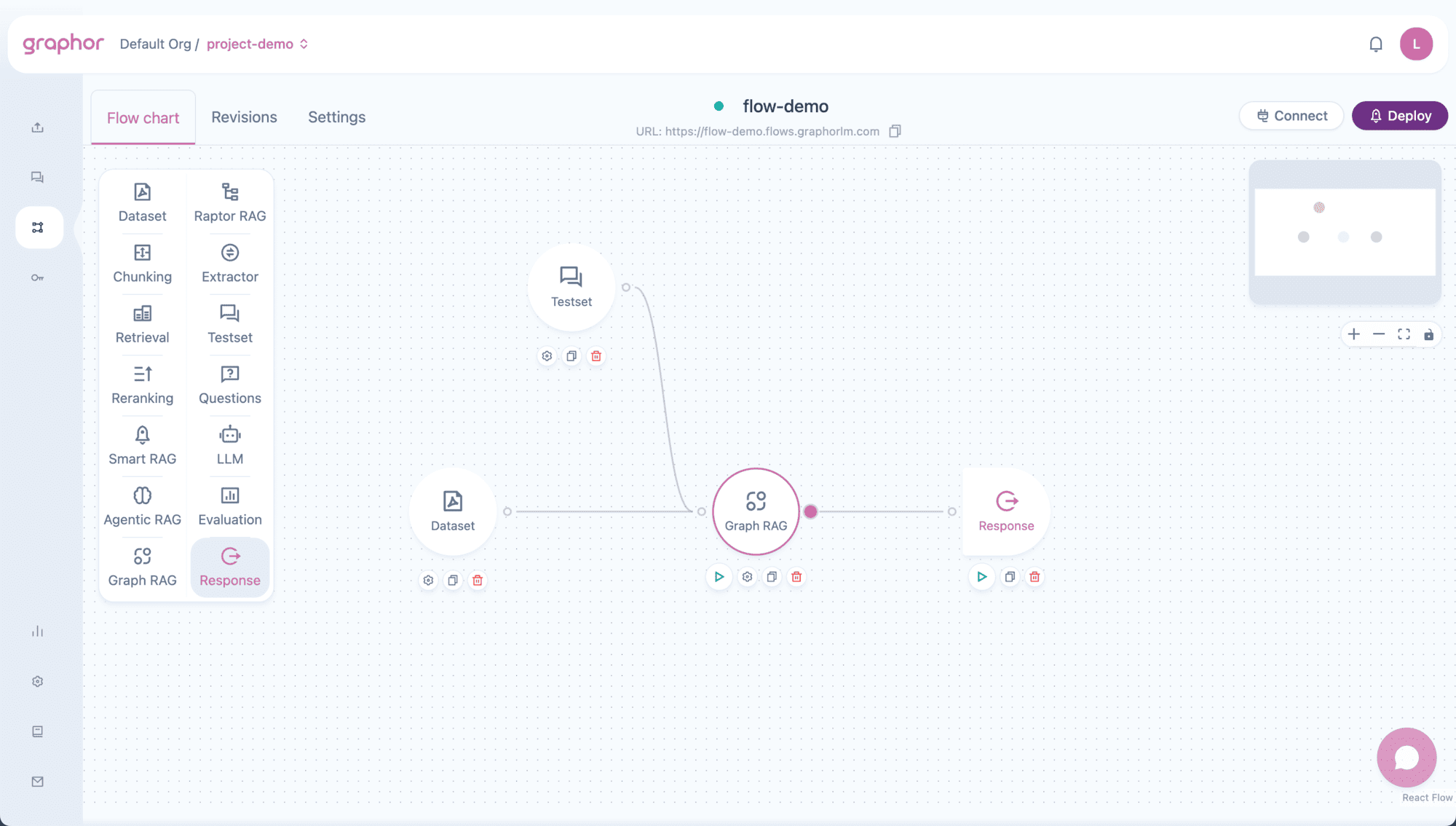
- Open your flow in the Flow Builder
- Drag the Graph RAG node from the sidebar onto the canvas
- Connect your Dataset node to Graph RAG
- Connect a Question or Testset node for queries
- Double-click the Graph RAG node to configure
Input Connections
The Graph RAG node accepts input from:| Source Node | Purpose |
|---|---|
| Dataset | Required — Provides documents to process |
| Question | Provides queries for retrieval (simulation/testing) |
| Testset | Provides multiple queries for comprehensive testing |
Output Connections
The Graph RAG node can connect to:| Target Node | Use Case |
|---|---|
| Reranking | Further improve result quality with LLM-based scoring |
| LLM | Generate natural language responses |
| Analysis | Evaluate retrieval performance |
| Response | Output retrieved results directly |
Configuring the Graph RAG Node
Double-click the Graph RAG node to open the configuration panel: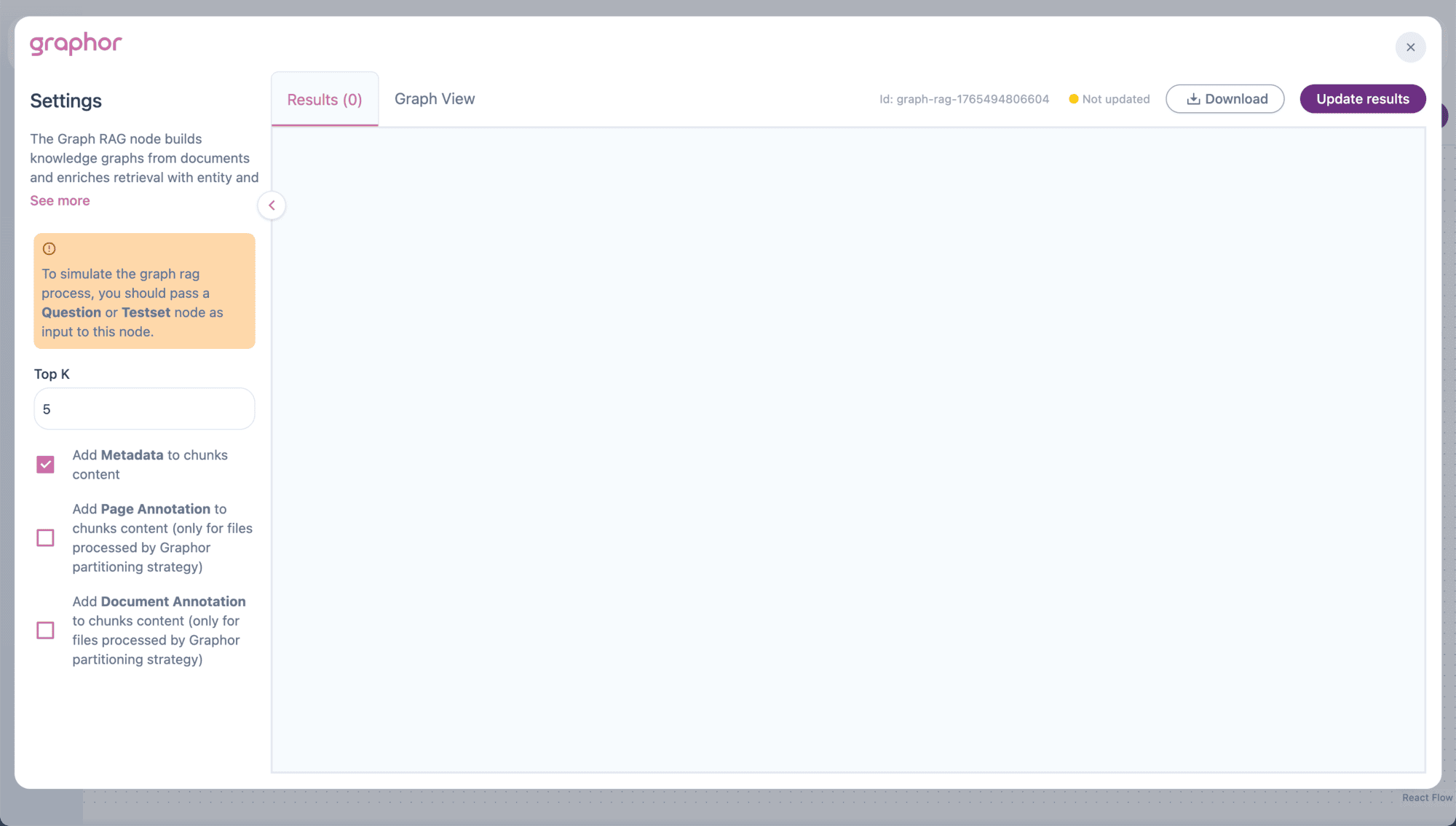
Top K
The number of chunks to retrieve for each query:| Value | Use Case |
|---|---|
| 1-3 | Precise, focused answers |
| 4-6 | Balanced coverage (default: 5) |
| 7-10 | Comprehensive context |
Add Metadata
When enabled, includes document metadata in chunk content:- File name
- Page number
- Position information
Add Page Annotation
When enabled, includes page-level annotations in chunk content.Only available for files processed with the Agentic parsing method.
Add Document Annotation
When enabled, includes document-level annotations in chunk content.Only available for files processed with the Agentic parsing method.
How Graph RAG Works
Processing Pipeline
- Chunking — Documents are split using title-based chunking
- Entity Extraction — LLM identifies entities in each chunk
- Relationship Extraction — LLM discovers connections between entities
- Graph Storage — Entities and relationships are stored in a knowledge graph
- Retrieval — Queries find relevant chunks via similarity search
- Enrichment — Retrieved chunks are augmented with entity/relationship context
Entity Types
Graph RAG extracts these entity types by default:| Entity Type | Examples |
|---|---|
| Person | John Smith, Dr. Jane Doe |
| Organization | Acme Corp, MIT, WHO |
| Location | New York, Europe, Building A |
| Product | iPhone, Model X, Widget Pro |
| Technology | Python, Machine Learning, REST API |
Relationship Types
Default relationship types include:| Relationship | Description |
|---|---|
| IS_A | Classification (e.g., “Python IS_A Programming Language”) |
| PART_OF | Composition (e.g., “Engine PART_OF Car”) |
| MEMBER_OF | Membership (e.g., “John MEMBER_OF Team A”) |
| WORKS_FOR | Employment (e.g., “Jane WORKS_FOR Acme Corp”) |
| KNOWS | Association (e.g., “Alice KNOWS Bob”) |
Viewing Results
Graph RAG provides two views for results:Results Tab
Shows retrieved chunks enriched with entity and relationship information:- Question — The query being answered
- Chunk Content — Original text
- NLP Entities — Extracted entities with descriptions
- NLP Relationships — Connections between entities
- Metadata — File name, page number, score
Graph View Tab
Visual representation of the knowledge graph:- Nodes — Entities colored by type
- Edges — Relationships between entities
- Interactive — Zoom, pan, and explore the graph

Pipeline Examples
Simple Graph RAG Pipeline
Dataset → Graph RAG → LLM → Response ← Question Best for: Knowledge-intensive Q&A with entity-rich documents.Graph RAG with Reranking
Dataset → Graph RAG → Reranking → LLM → Response ← Question Best for: Maximum precision with entity context and LLM reranking.Graph RAG Evaluation Pipeline
Dataset → Graph RAG → Analysis ← Testset Best for: Evaluating retrieval quality with entity enrichment.Graph RAG vs. Other RAG Nodes
| Feature | Graph RAG | Smart RAG | Agentic RAG |
|---|---|---|---|
| Entity extraction | ✅ Yes | ❌ No | ❌ No |
| Relationship mapping | ✅ Yes | ❌ No | ❌ No |
| Graph visualization | ✅ Yes | ❌ No | ❌ No |
| Configuration | Top K, metadata, annotations | Top K, metadata, annotations | None |
| Processing time | Longer (entity extraction) | Medium | Fast |
| Best for | Entity-rich documents | General documents | Quick setup |
Best Practices
- Use for entity-rich content — Graph RAG shines with documents containing many named entities and relationships
- Allow processing time — Entity extraction takes longer than standard chunking
- Explore the Graph View — Visualize your knowledge graph to understand extracted relationships
- Combine with Reranking — Add Reranking for better precision on complex queries
- Test with Testsets — Evaluate performance before deployment
Troubleshooting
No results showing
No results showing
If Graph RAG returns no results:
- Verify a Question or Testset node is connected
- Check that Dataset contains processed documents
- Ensure documents have status “Processed”
- Wait for entity extraction to complete (may take longer)
Empty or sparse knowledge graph
Empty or sparse knowledge graph
If the Graph View shows few entities:
- Check document content — entities may not be present
- Verify documents are properly parsed
- Try documents with clearer entity mentions
Slow processing
Slow processing
If Graph RAG is slow:
- Entity extraction requires LLM calls per chunk
- Reduce number of documents in Dataset
- Consider Smart RAG for faster processing
Annotations not appearing
Annotations not appearing
If page/document annotations don’t show:
- Verify documents were parsed with Agentic method
- Enable the corresponding checkbox in settings
- Reprocess documents if needed
Next Steps
Smart RAG
Simpler RAG without entity extraction
Dataset
Configure document selection for Graph RAG
Reranking
Add LLM-based reranking for better results
Evaluation
Measure retrieval quality with metrics