

Overview
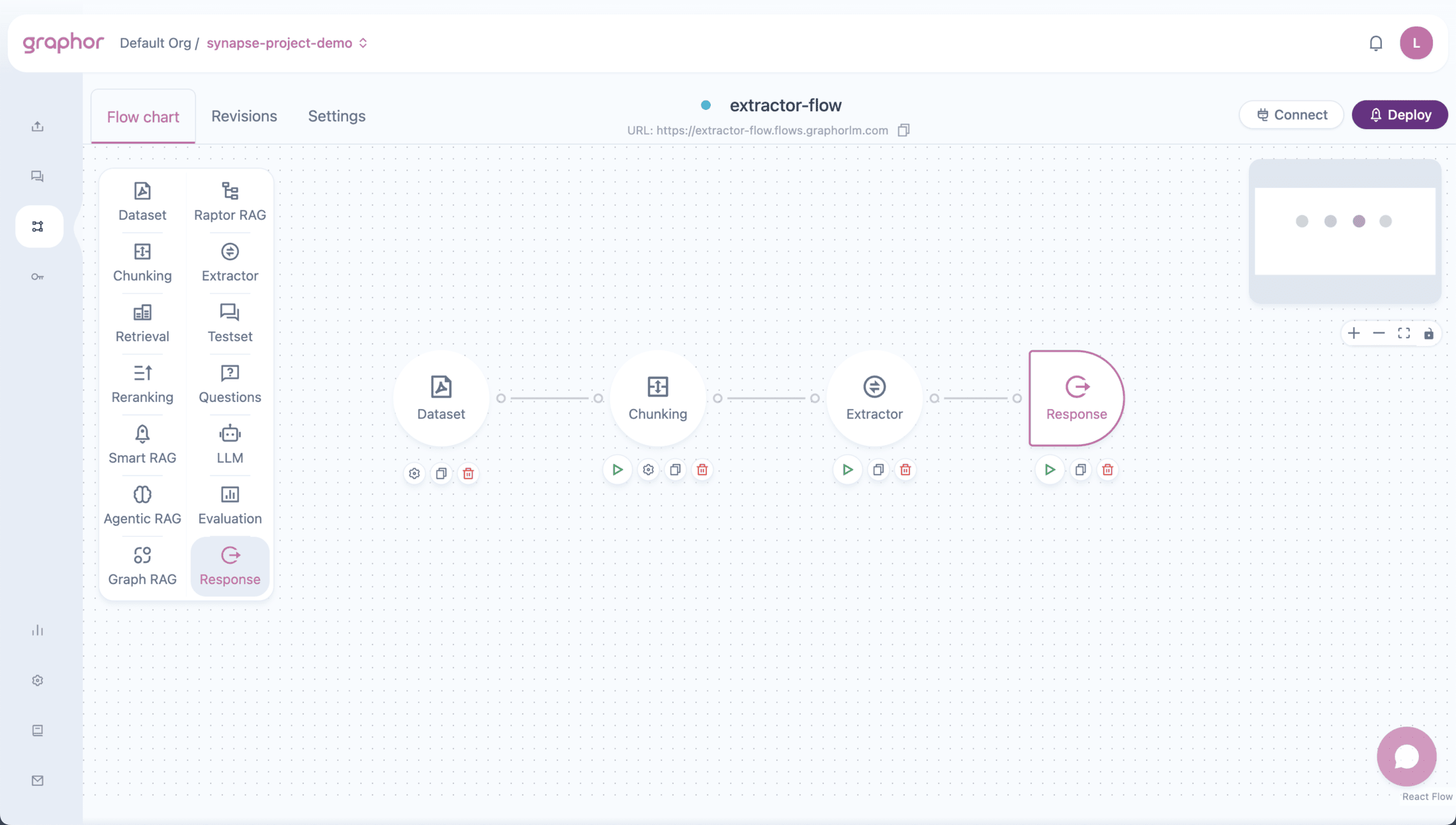
The Extractor node transforms unstructured documents into structured data by:- Processing documents — Receives documents from Dataset or Chunking nodes
- Applying custom schemas — Extracts data according to your defined fields
- Using LLM intelligence — Leverages language models to understand and extract information
- Outputting structured data — Returns results as structured JSON that can be exported to CSV
The Extractor node is different from Data Extraction in the Sources page. The Extractor node is part of a RAG pipeline and processes documents in batch, while Data Extraction works on individual documents with page-level provenance.
Using the Extractor Node
Adding the Extractor Node
- Open your flow in the Flow Builder
- Drag the Extractor node from the sidebar onto the canvas
- Connect an input node to the Extractor:
- Dataset → Extractor (extracts from raw documents)
- Chunking → Extractor (extracts from chunked content)
- Double-click the Extractor node to configure
Input Connections
The Extractor node accepts input from:| Source Node | Use Case |
|---|---|
| Dataset | Extract from full documents (uses Mistral for PDFs/images) |
| Chunking | Extract from chunked content (better for large documents) |
Output Connections
The Extractor node can connect to:| Target Node | Use Case |
|---|---|
| Response | Output extracted data as the pipeline result |
Configuring the Extractor Node
Double-click the Extractor node to open the configuration panel: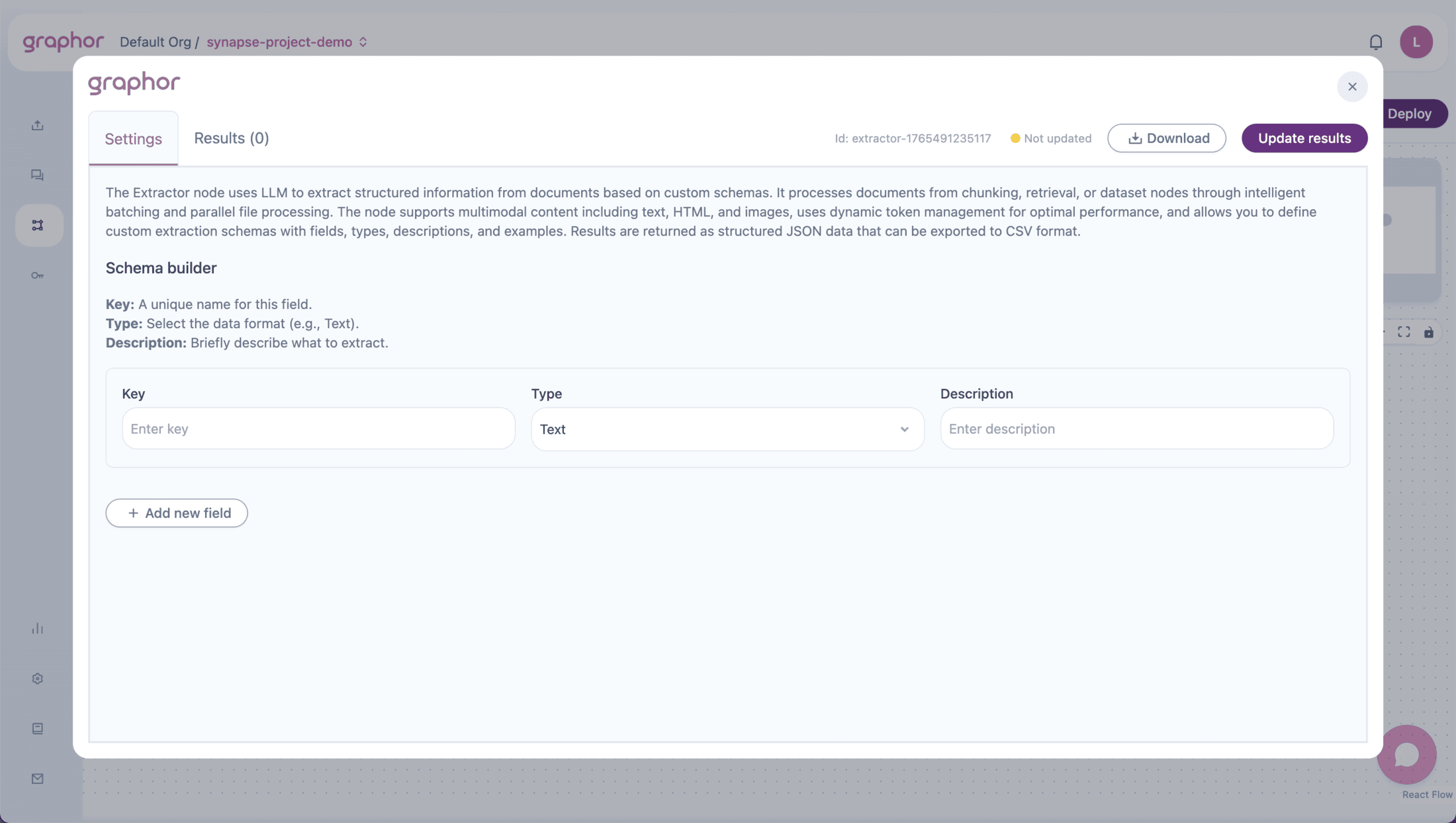
Defining Your Schema
The schema defines what information to extract. Each field has:| Property | Description | Example |
|---|---|---|
| Key | Field name in the output | invoice_number |
| Type | Data type (string, number, boolean, date, object, array) | string |
| Description | What to extract | ”The unique invoice identifier” |
| Example | Sample value (helps the LLM) | “INV-2024-001” |
Adding Fields
- In the Settings tab, click Add Field
- Fill in the field properties:
- Key: Use snake_case names (e.g.,
customer_name) - Type: Choose the appropriate data type
- Description: Be specific about what to extract
- Example: Provide a realistic example value
- Key: Use snake_case names (e.g.,
- Repeat for all fields you need
Field Types
| Type | Description | Example Output |
|---|---|---|
| string | Text values | "John Doe" |
| number | Numeric values | 299.99 |
| boolean | True/false values | true |
| date | Date values | "2024-01-15" |
| object | Nested structured data | {"street": "123 Main St", "city": "NYC"} |
| array | Lists of values | ["item1", "item2"] or [{...}, {...}] |
Object Type
Use object type to group related fields together (e.g., address, specifications). When selecting object, define nested fields with their own key, type, and description.Array Type
Use array type for lists. Specify the Items Type to define what the array contains:| Items Type | Use Case | Example |
|---|---|---|
| string | List of text | Tags, skills |
| number | List of numbers | Quantities |
| boolean | List of booleans | Feature flags |
| date | List of dates | Event dates |
| object | List of structured items | Line items, experience |
Schema Examples
Invoice Extraction
| Key | Type | Description | Example |
|---|---|---|---|
invoice_number | string | The unique invoice identifier | INV-2024-001 |
invoice_date | date | Invoice date in YYYY-MM-DD format | 2024-01-15 |
vendor_name | string | Name of the company issuing the invoice | Acme Corp |
total_amount | number | Total amount due | 1250.00 |
billing_address | object | Billing address details | - |
↳ street | string | Street address | 123 Main St |
↳ city | string | City name | New York |
↳ country | string | Country | USA |
line_items | array (object) | List of products/services | - |
↳ description | string | Item description | Widget A |
↳ quantity | number | Quantity | 2 |
↳ price | number | Unit price | 50.00 |
Contract Analysis
| Key | Type | Description | Example |
|---|---|---|---|
contract_title | string | Title or name of the contract | Service Agreement |
effective_date | date | When the contract becomes effective | 2024-02-01 |
termination_date | date | When the contract ends | 2025-01-31 |
auto_renewal | boolean | Whether contract auto-renews | true |
parties | array (object) | Parties involved in the contract | - |
↳ name | string | Party name | Company A |
↳ role | string | Role in contract | Licensor |
key_terms | object | Key contract terms | - |
↳ payment_terms | string | Payment conditions | Net 30 |
↳ notice_period | number | Notice period in days | 30 |
Product Catalog
| Key | Type | Description | Example |
|---|---|---|---|
product_name | string | Name of the product | Widget Pro |
sku | string | Stock keeping unit identifier | WDG-PRO-001 |
price | number | Product price | 49.99 |
in_stock | boolean | Whether product is available | true |
features | array (string) | List of product features | [“Durable”, “Lightweight”] |
specifications | object | Product specifications | - |
↳ weight | number | Weight in kg | 0.5 |
↳ dimensions | string | Dimensions | 10x5x3 cm |
variants | array (object) | Product variants | - |
↳ color | string | Variant color | Blue |
↳ size | string | Variant size | Large |
Viewing Results
After running the extraction (click Update Results):- Go to the Results tab
- View extracted data in a table format
- Each row represents one extracted item
- Columns correspond to your schema fields
Exporting Results
Click Download CSV to export the extracted data:- All fields are included as columns
- Each extracted item is a row
- Values are properly escaped for CSV format
Best Practices
Schema Design
- Start simple — Begin with essential fields, then expand
- Be specific in descriptions — Tell the LLM exactly what to look for
- Provide examples — Example values help the LLM understand the expected format
- Use appropriate types — Match field types to expected data
- Use objects for structured data — Group related fields (address, specifications) using object type
- Use arrays for lists — Line items, skills, and features are perfect for array type
- Keep nesting shallow — Avoid deeply nested structures for better extraction accuracy
Input Selection
| Scenario | Recommended Input |
|---|---|
| Small documents (< 50 pages) | Dataset node |
| Large documents | Chunking node |
| Image-heavy PDFs | Dataset node (uses Mistral) |
| Text-heavy documents | Either works well |
Performance Tips
- Limit concurrent files — Default is 3-5 for optimal balance
- Reduce batch size for images — Image processing is more resource-intensive
- Use chunking for large docs — Better memory management and extraction quality
Pipeline Examples
Direct Extraction Pipeline
Chunked Extraction Pipeline
Combined RAG + Extraction Pipeline
| Path | Flow |
|---|---|
| RAG Path | Dataset → Chunking → Retrieval → LLM → Response |
| Extraction Path | Dataset → Extractor → Response |
Troubleshooting
Empty or missing extractions
Empty or missing extractions
If no data is extracted:
- Verify schema fields have clear descriptions
- Add example values to guide the LLM
- Check that input documents contain the expected information
- Try using Chunking node for better document processing
Duplicate extractions
Duplicate extractions
If seeing duplicate items:
- The Extractor automatically deduplicates, but check your schema
- Ensure key fields are unique identifiers
- Review if documents contain repeated information
Slow extraction
Slow extraction
If extraction is taking too long:
- Reduce the number of input documents
- Use Chunking node to split large documents
- Consider extracting fewer fields
- Check document complexity (image-heavy PDFs take longer)
Incorrect data types
Incorrect data types
If extracted values have wrong types:
- Be explicit in field descriptions about expected format
- Add examples that match the expected type
- Use specific instructions (e.g., “as a number without currency symbols”)
Next Steps
Dataset
Learn how to configure the Dataset node as input
Chunking
Optimize document segmentation before extraction
Data Extraction
Extract from individual documents with page provenance
Integrate Workflow
Connect your extraction pipeline via REST API